
If you have already added your cPanel email accounts to your Android built-in email application, you can also add a widget to your Android screen to easily read your cPanel emails by just opening a widget. For businesses that need advanced email features like custom spam filtering, shared mailboxes, and enterprise-grade deliverability, explore our dedicated email hosting solutions.
1. Firstly open your Android mobile. Tap on the blank area of your home screen for a few seconds, and you will see several options displayed, such as Wallpaper, Widget, etc. You need to tap on Widgets.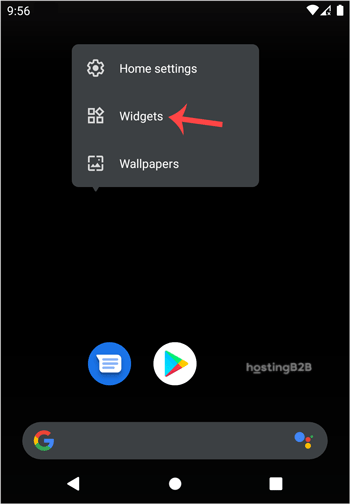
2. Locate Gmail and tap on Gmail Label or Gmail for a few seconds. Then drag it to your Android screen.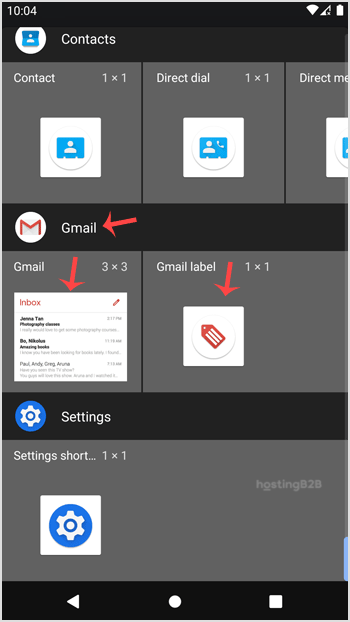

3. You can see how we can drag it to an Android mobile screen.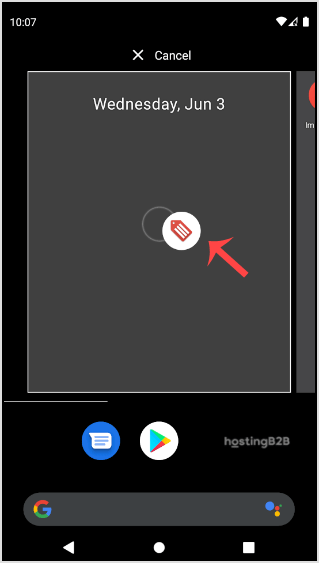
4. If you have multiple email accounts, select an appropriate email account. It will then show an option to choose a folder. Tap on Inbox.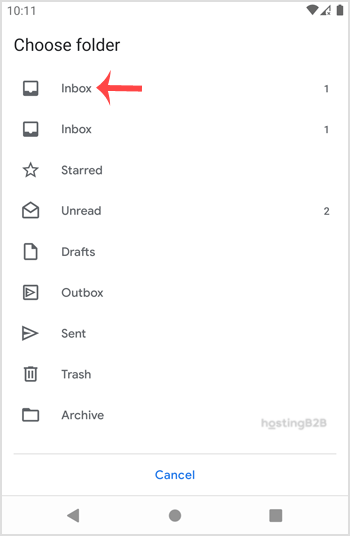
5. Finally tap on the Done button.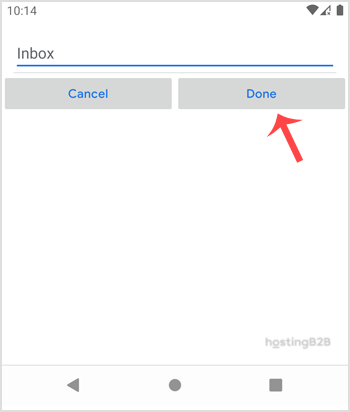
Congratulations. Now you can easily read, compose, or check emails by just opening an email icon that is created on your home screen.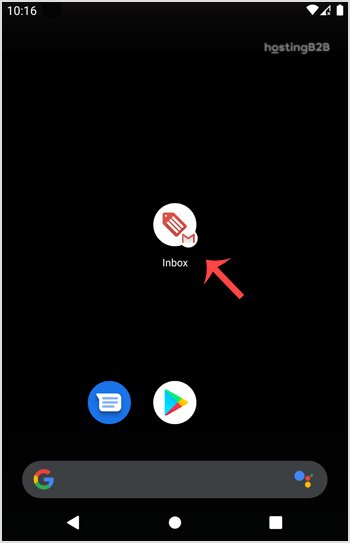
It will automatically start syncing emails whenever you open this icon, and if you receive an email, it will display it onscreen. We recommend that you also go through our other Android tutorials. They will be of help to you too. If you haven’t set up your cPanel email on Android yet, follow our guide on how to add a cPanel email account to your Android mobile. To get started with web hosting that includes cPanel email management, explore our hosting plans.








