
In a few steps you can remove a website redirect in DirectAdmin. Managing redirects is important for SEO and site structure on your web hosting account.
1. Log in to your DirectAdmin Account.
2. In the Account Manager section, click on the Site Redirection Icon or type Site Redirection in the navigation filter box, and then the option will appear. Click on it.

3. Under Local URL Path, Select the redirect entry you wish to remove.
4. Click on the Delete button, and It will prompt for confirmation. Again click on the Delete button.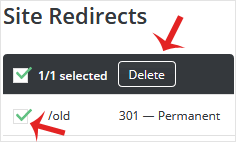
You have successfully removed a website redirect in DirectAdmin. For more about how redirects affect your site’s SEO, see our guide on how to redirect a page using .htaccess. To manage subdomains in DirectAdmin, learn how to add a subdomain or remove a subdomain.








