
A step by step guide to help you redirect your website in DirectAdmin. Redirects are essential for maintaining SEO value and user experience when moving pages on your web hosting site.
1. Log in to your DirectAdmin Account.
2. In the Account Manager section, click on the Site Redirection Icon or type Site Redirection in the navigation filter box, and then the option will appear. Click on it.

3. On the top right-hand side, click on the Create New Redirect button.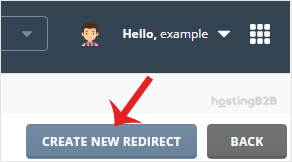
4. In Local URL Path If you want to redirect your website page, then enter page name or leave this as it is.
5. Select Redirect Type from the drop-down menu and in Destination URL enter URL where you wish to redirect your website or page.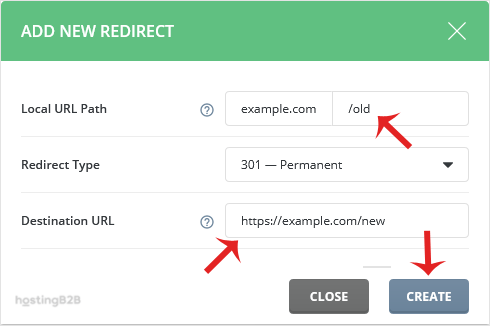
6. Click on the Create button.
You have redirected your website in DirectAdmin. To remove a redirect later, follow our guide on removing a website redirect. For more advanced redirect techniques using .htaccess, see our .htaccess redirect guide. To manage your domain settings, learn how to add a subdomain in DirectAdmin.








