

An easy guide to help you rename a database in cPanel. This feature is available on all our web hosting plans with cPanel.
1. Log into your cPanel account.
2. In the Databases section, click on MySQL Databases Icon.


3. Under Current Databases, You can see a list of all your databases. Locate the Database and then click on Rename Icon.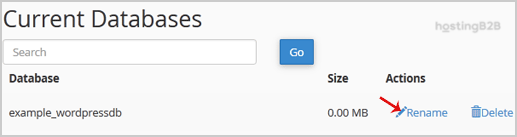
4. Change the database name and then click on the Proceed button.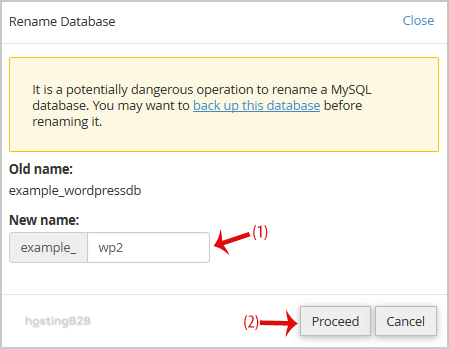
You have successfully renamed a database in cPanel. Important: After renaming, update the database name in your application’s configuration file (e.g., wp-config.php for WordPress). For related database management, see how to create a database, manage user privileges, or create a database username in cPanel.








