

ProcessWire is a powerful, open-source Content Management System (CMS) and framework known for its flexibility and ease of use for developers. If you are using HostingB2B’s cPanel web hosting, you can have ProcessWire up and running in minutes using the Softaculous automation tool.
What is Softaculous?
Softaculous is a leading auto-installer integrated into cPanel that simplifies the process of deploying web applications. Instead of manually creating databases and uploading files via FTP, Softaculous allows you to install over 400 scripts (including ProcessWire, WordPress, and Joomla) with just a few clicks. It handles the backend configuration, ensuring a smooth and error-free installation.
A step by step guide to help you install ProcessWire via Softaculous in cPanel.

1. Log into your cPanel account.
2. In the Software section, click on the Softaculous App Installer Icon.
3. cPanel will redirect you to the Softaculous Panel.
4. On the left side of your screen, you should locate the Portal/CMS category. Click on it and then click on the ProcessWire link that will appear.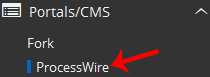
5. Click on the Install button.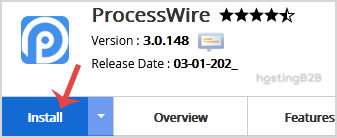
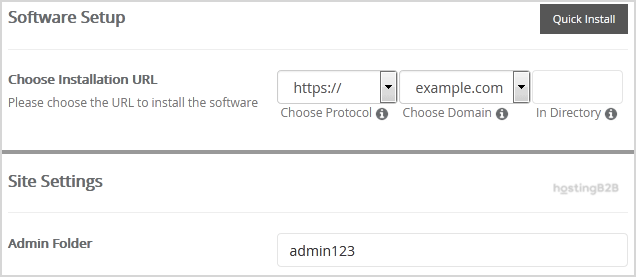
6. Fill the necessary field, under the Software Setup field:
- Choose Installation URL: Choose the appropriate protocol/domain. Inside the “In Directory” field, should you want to install this in a directory, i.e., example.com/directory, enter the directory name. Otherwise, leave it blank to install in your main domain, i.e., example.com
7. Under Site Settings field:
- Admin Folder: Enter the name of your admin folder, such as admin123.
8. Under the Admin Account field, enter the following information:
- Username: Your new ProcessWire username (for security reason do not use the Administrator or the Admin username.)
- Password: Use a strong password.
- Email: Your e-mail address.
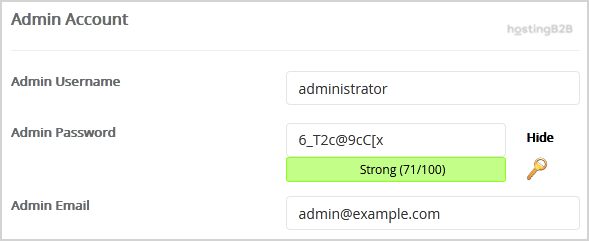
Note: Copy the admin username and password on a notepad because you will need these login details to access the admin area of your ProcessWire Website.
9. Advanced Options: Leave this as it is unless you want to change the database name or take an automated backup. Please note that taking frequent backups may take a lot of disk space.
Finally, scroll down to the end of the page and click on the Install button.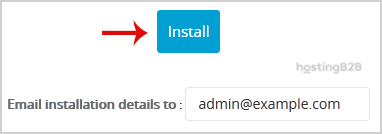
You have successfully installed ProcessWire via Softaculous in cPanel.
Conclusion
Installing ProcessWire is effortless when you have the right tools at your disposal. By choosing HostingB2B’s cPanel hosting, you benefit from a high-performance environment specifically optimized for CMS stability and speed. We also recommend securing your ProcessWire installation with an SSL certificate to protect data in transit and improve search engine rankings. Combined with the automation of Softaculous, you can spend less time on technical setup and more time building your project.
If you encounter any issues during the installation, our expert support team is available 24/7 to assist you.
Ready to launch? Explore our cPanel Hosting Plans and get started today!
For more technical guides and industry insights, visit the HostingB2B Blog.








