

Installing a new Content Management System can seem like a complex task but using the right tools simplifies the entire process. This guide provides a clear and complete walkthrough to help you install PopojiCMS via Softaculous in cPanel. Follow these steps to get your new website running in just a few minutes.
PopojiCMS Installation Guide
The Softaculous App Installer is a powerful tool inside cPanel that automates application installations. This eliminates the need for manual file uploads or database configuration. Let’s begin the PopojiCMS setup.
- Log Into Your cPanel Account
First you must access your cPanel dashboard. This is the central control panel for managing your reliable Web Hosting services. If you have trouble logging in you may need to reset your credentials. - Navigate to Softaculous
Once you are logged into cPanel scroll to the Software section. Locate and click the Softaculous App Installer icon. This action will redirect you to the main Softaculous dashboard where you can manage hundreds of applications.
- Find PopojiCMS
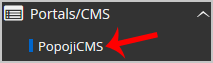
In the Softaculous panel look at the navigation menu on the left side of the screen. Find the Portal/CMS category and click it. A list of available content management systems will appear. Find and click the PopojiCMS link to proceed.
- Start the Installation
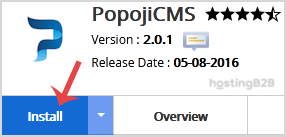
On the PopojiCMS overview page click the Install button to open the setup configuration screen.
- Configure the Installation URL
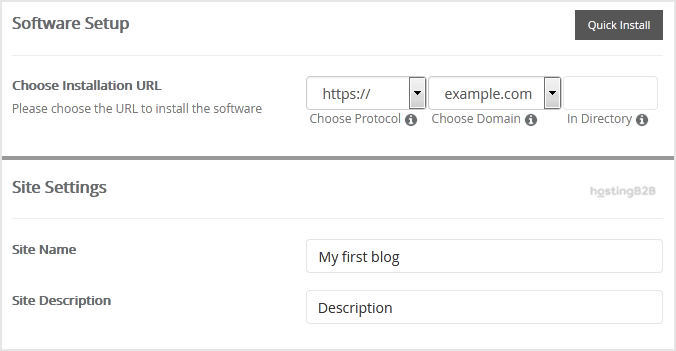
Under the Software Setup field you need to define where PopojiCMS will be installed.- Choose Installation URL Select the correct protocol and domain name from the dropdown menus.
- In Directory This field is critical. To install PopojiCMS on your main domain (e.g. example.com) leave this field empty. To install it in a subfolder (e.g. example.com/blog) enter the directory name here.
- Define Your Site Settings
Next move to the Site Settings section. These details help identify your website.- Site Name Enter the name for your new website.
- Site Description Provide a brief description or slogan for your site.

- Create Your Admin Account
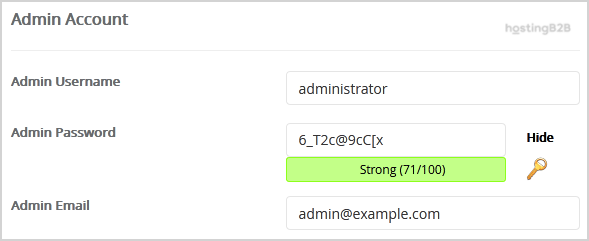
The Admin Account section is for creating your login credentials. It is vital to use secure details here.- Username Choose a unique username. For security do not use common names like “admin” or “administrator”.
- Password Create a strong and complex password.
- Email Enter a valid email address. This will be used for notifications and password resets.

Important Note Be sure to copy your new admin username and password and store them in a secure location. You will need them to access your website’s administrative backend.
- Review Advanced Options
This section allows for more control over your cPanel CMS installation. While default settings are often sufficient you can customize the database name or manage backups here. Taking frequent automated backups can consume significant disk space but is essential for site safety. You can always generate a full cPanel backup manually when needed. - Complete the Installation
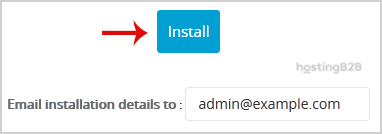
Finally scroll to the bottom of the page and click the Install button. Softaculous will now handle the entire installation process. Once it is complete you will see a success message confirming that PopojiCMS has been installed.
Verifying Your Installation
After the installation is successful the confirmation page will provide two links. One link directs to your new website’s homepage and the other leads to the administrative login page. Click the administrative URL and use the username and password you created during setup to log in and start building your site.

Frequently Asked Questions
PopojiCMS is a content management system designed for building websites and managing online content. It provides a user-friendly interface for creating pages, posts and other site elements.
Yes you can. During the setup process in the “In Directory” field simply enter the name of the folder where you want the installation to reside. If you leave it blank the CMS will be installed in your domain’s root directory.
A strong password is your first line of defense against unauthorized access. Using a complex combination of letters, numbers and symbols makes it much harder for attackers to guess your credentials and compromise your website.
After a successful installation Softaculous will provide a direct link to your admin panel. Typically the URL is your domain name followed by an administrative path such as /admin. You can then log in with the credentials you created.
Yes Softaculous offers automated backup options within the “Advanced Options” section during installation. You can set a schedule for backups but be mindful that this can use a significant amount of your hosting account’s disk space.








