

cPanel is the most popular web hosting control panel, offering an easy-to-use interface for managing websites, domains, emails, databases, and server settings. In this step-by-step guide, you will learn how to install cPanel on a fresh server using SSH, complete the WHM setup wizard, and access your control panel for the first time. This guide is suitable for beginners and works on all officially supported operating systems.
What is cPanel and why should you use it?
cPanel is the most widely used web hosting control panel, allowing server administrators and website owners to manage domains, emails, databases, files, and security settings through a simple graphical interface. Its ease of use and powerful features make it the preferred choice for VPS and dedicated servers.
What are the requirements to install cPanel?
Before installing cPanel & WHM, ensure that your server meets the official system requirements. cPanel supports the following operating systems for new installations:

The system must be a fresh installation with no other control panels installed, and you must have root SSH access to the server. If you need a clean base image, you can buy Rocky Linux VPS plans from HostingB2B pre-configured for cPanel installs.
How to install cPanel?
1. Login to your VPS/Server via the SSH Client.
Ready to take full control of your server?
Check out our web hosting plans and get started today!
Web Hosting2. Please copy the following command and paste it in the SSH Console. Then press enter.
cd /home && curl -o latest -L https://securedownloads.cpanel.net/latest && sh latest3. The cPanel installation has begun. It can take from 15 to 25 minutes.
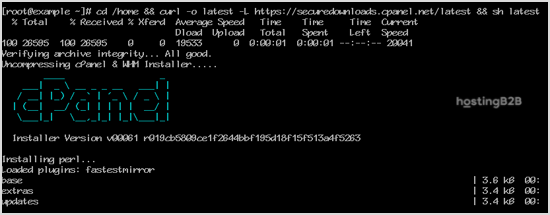
4. Once the installation is complete, the console will display a message like the cPanel Installation has been completed.
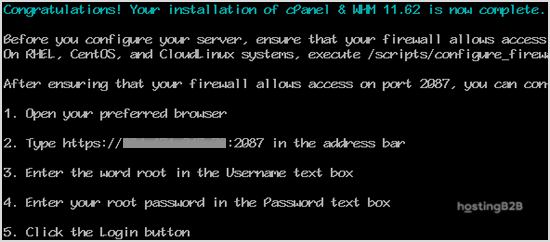
5. Open https://your-server-IP-here:2087 (WHM)
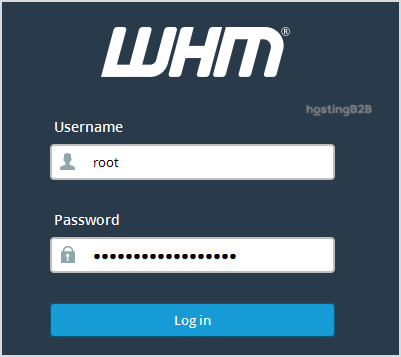
6. Enter the username root in the username field.
7. Enter your root password in the password field.
8. Click the Login button.
cPanel/WHM Setup Wizard:
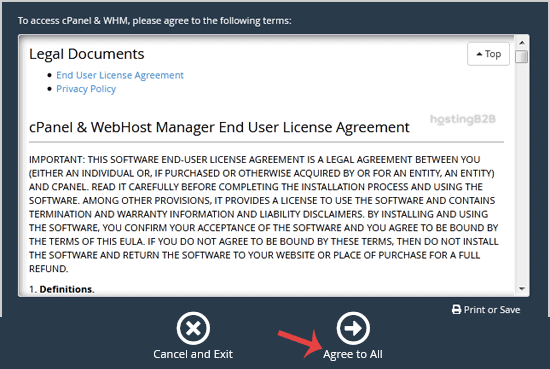
Step 1: Read and accept the agreement.
Step 2: Setting up Nameserver & Email:
- Email Address: Enter your email address. You will receive cPanel related alert on your email.
- Nameservers: Enter your domain nameserver such as ns1.example.com and ns2.example.com (Replace example.com with your domain name).
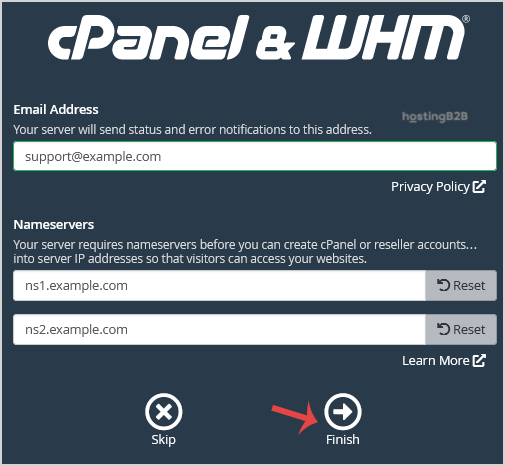
Finally, click the Finish button.
Round-the-Clock Support
Our certified experts are always available to resolve issues, ensure compliance, and maintain performance.
For more information, contact our experts!
Round-the-Clock Support
Our certified experts are always available to resolve issues, ensure compliance, and maintain performance. For more information, contact our experts!
Congratulations, the cPanel Installation is complete, and now you will need to compile Easy Apache, change settings, install a firewall, etc.
If English isn’t your first language, one of the first things you might want to do after successfully installing cPanel and logging in for the first time is to change the interface to your preferred language. Changing the language makes it much simpler and more comfortable to navigate and manage your hosting environment. Uncertain about how to accomplish that? You can customise your cPanel from the start by following our detailed instructions on How to Change the Language of Your cPanel.
Need help installing cPanel?
Our certified hosting experts are available 24/7 to help you install, configure, and secure cPanel on your server.
Contact our Support Team or start a live chat today.








