

Access to cPanel Web Disk
You can use cPanel login details to access your Web Disk, which supports various operating systems such as Mobile OS and others.
1. Log into your cPanel account. (e.g., www.example.com/cPanel )
Want easier access to your website files?

With cPanel Web Disk, you can manage your site’s content directly from your desktop
Web Hosting2. In the Files section, click the Web Disk icon.
3. Under Main Web Disk Account, click on Configure Client Access.
4. Select your operating system from the drop-down menu and then click on the Download Configuration Script.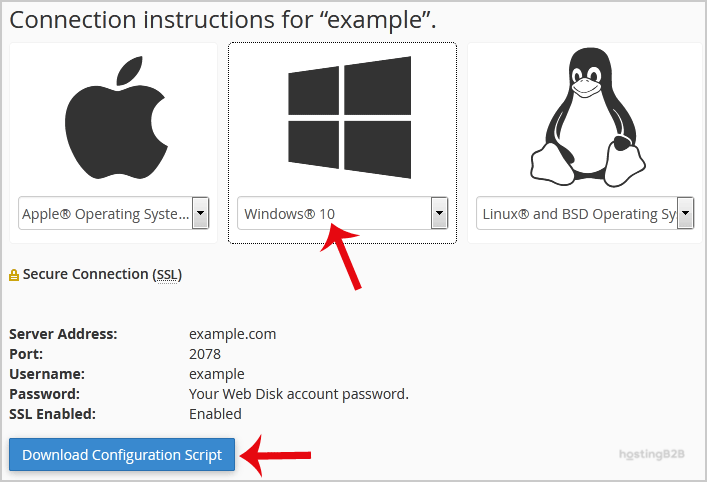
5. Now open the downloaded script. It may take a few minutes before it prompts you for username and password. Enter your Web Disk or cPanel login details and, you will be able to access your website files.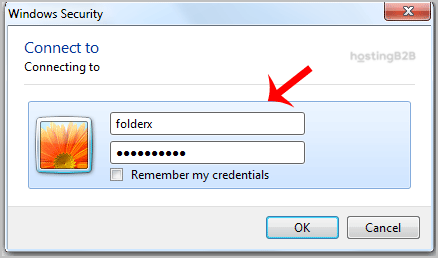
Note: If you are using the Windows OS and the server is not using an SSL certificate, you will need to Enable Digest Authentication, and port 2078 must be allowed in your computer’s firewall.
Round-the-Clock Support
Our certified experts are always available to resolve issues, ensure compliance, and maintain performance. For more information, contact our experts!
HostingB2B Services for cPanel Hosting
Once you’ve set up Web Disk access, you can also manage files through the cPanel File Manager or via FileZilla FTP client. To manage your WordPress site content, follow our guide on How to Access the WordPress Admin Account.








