
Maintaining a secure and high-performing virtual server requires proper lifecycle management. Whether you need to troubleshoot issues, deploy a new environment, or perform a complete system reset, the ability to reinstall VPS OS quickly and safely is essential.
With VPS HostingB2B, the vps os reinstall process is fully automated and accessible directly from your client area. Whether you plan to reinstall Linux VPS, perform a VPS clean install, manage full VPS OS deployment, or completely reset VPS server, the process is intuitive and takes only a few minutes to initiate.
Below is a detailed step-by-step guide.
Step 1: Access Your HostingB2B Dashboard
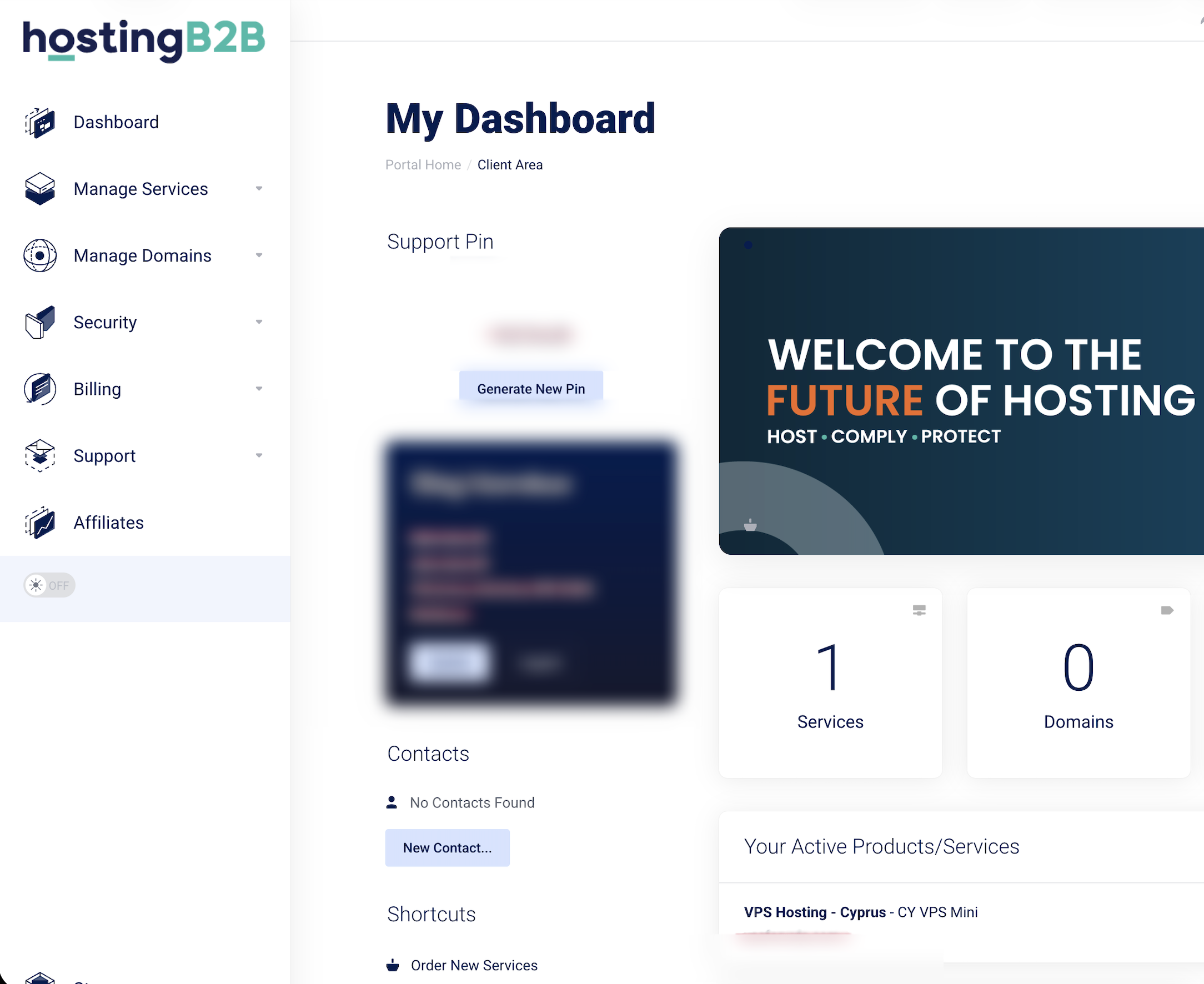
After the successful activation of your VPS in your HostingB2B account, log in and open your Dashboard.
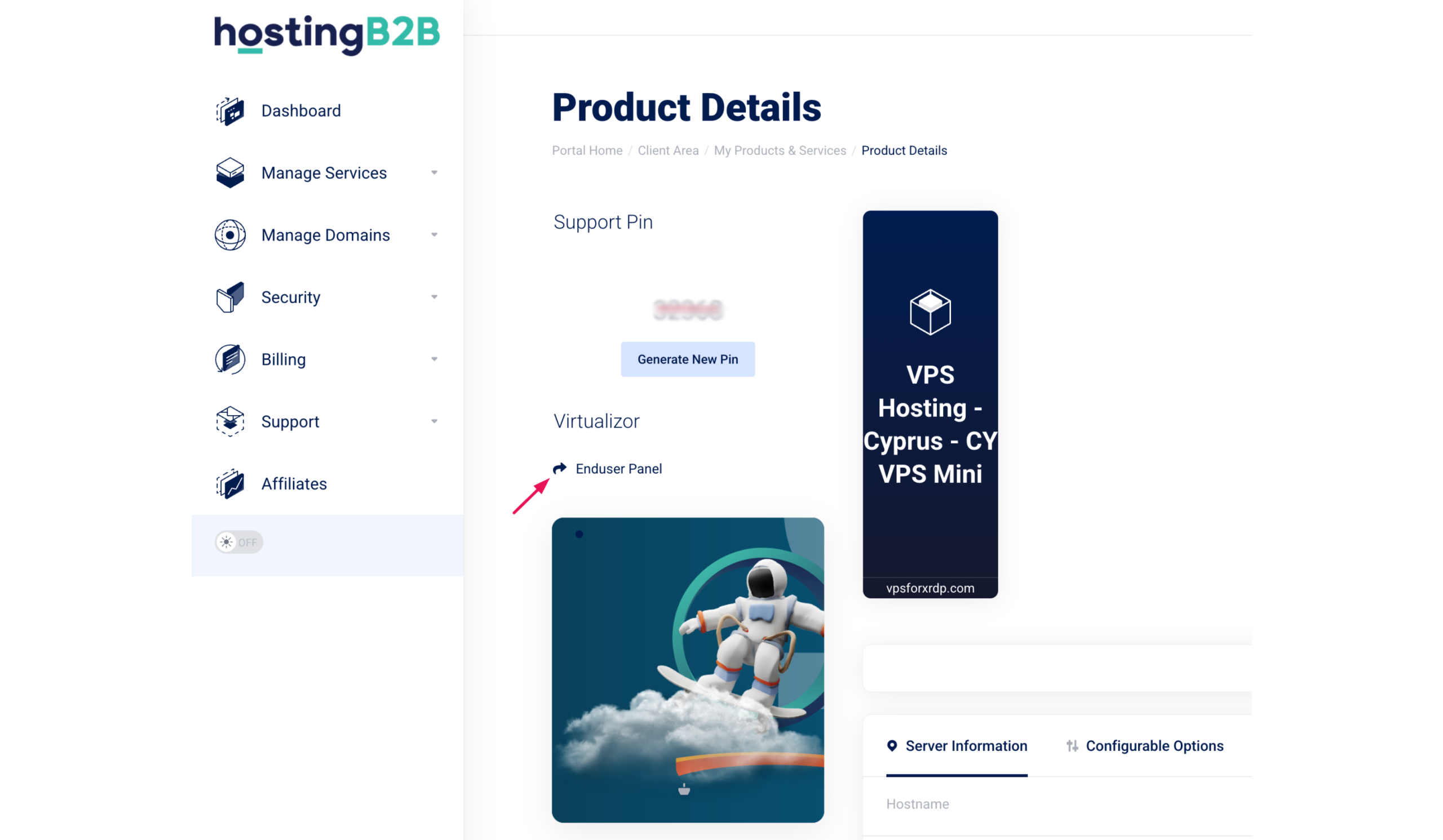
Select the required VPS service and navigate to the Enduser Panel.
This is where the operating system management tools are available, including the option to change or reinstall your OS.
Step 2: Open the Manage Section
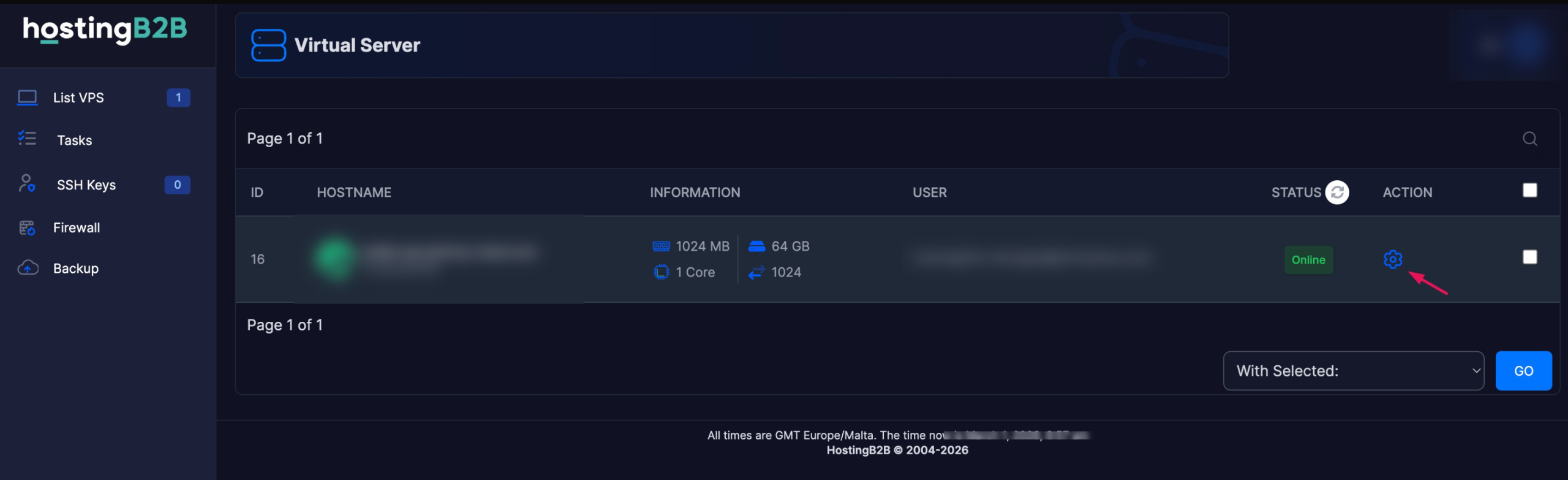
Inside the Enduser Panel, proceed to the Action section by clicking the corresponding icon (as indicated in the interface screenshot within your control panel).
This section contains the core administrative controls for your VPS, including power management, network settings, and OS operations.
Step 3: Choose the Install Option
Within the Manage section, select the Install option.
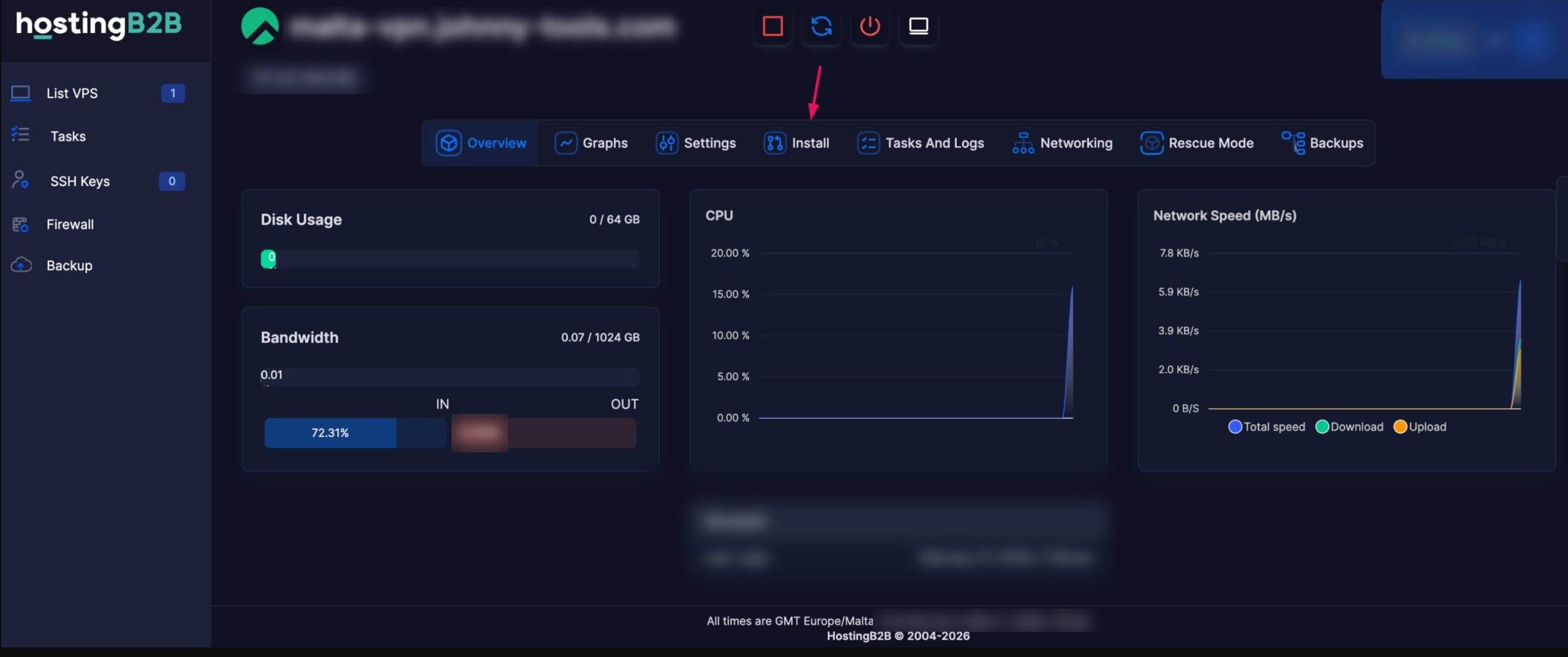
This action initiates the OS reinstallation workflow and displays the list of available operating system images. This is the starting point for:
- reinstall vps os
- reinstall linux vps
- full vps clean install
- complete vps os deployment
- reset vps server to a fresh state
Step 4: Configure Your New OS
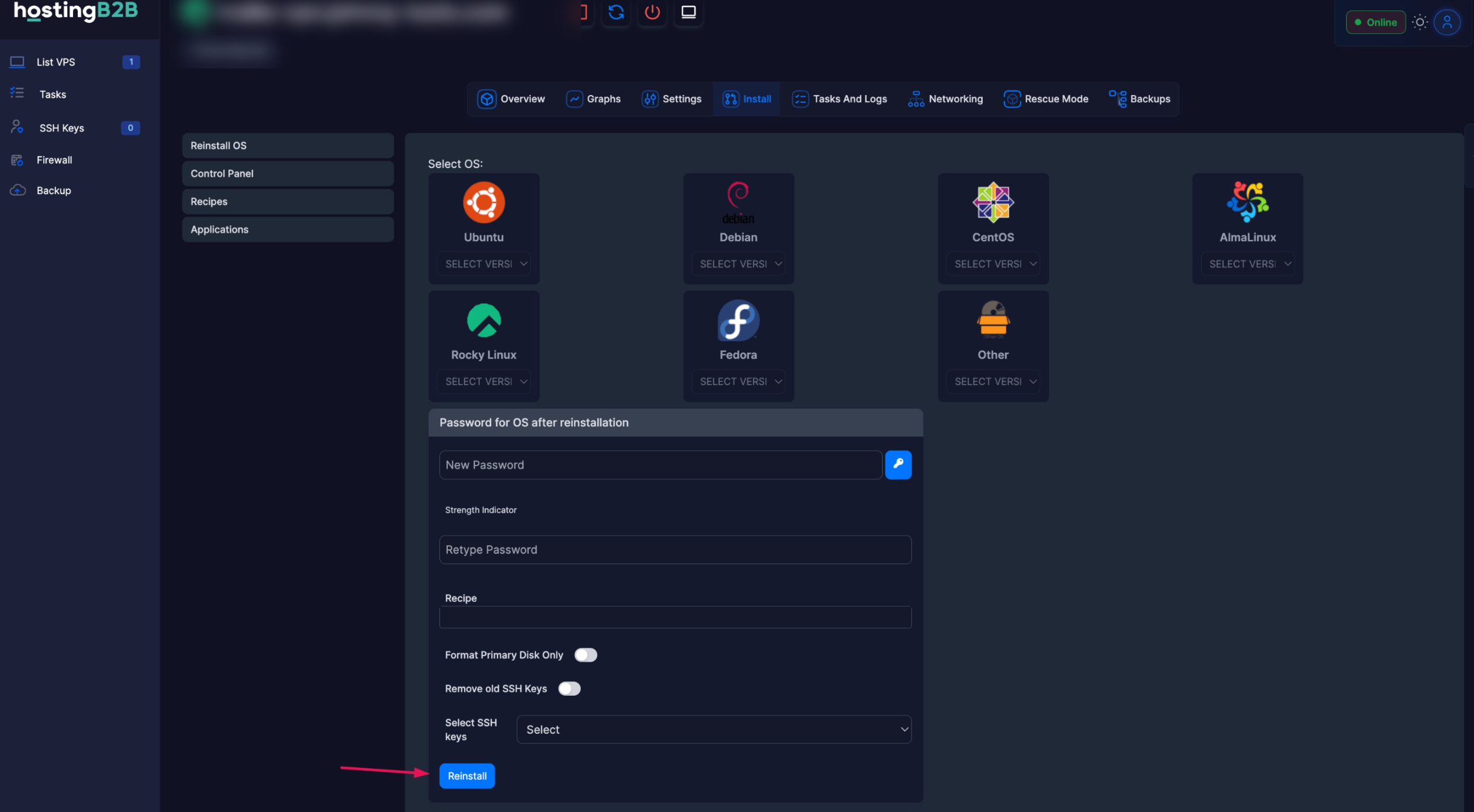
Once you click Install, follow these steps:
-
Select the desired Operating System
Choose from the available Linux distributions or other supported OS images. -
Set a New Root Password
Enter a strong password and confirm it. -
Select the Formatting Type
Choose the appropriate disk formatting option based on your deployment requirements. -
SSH Key Configuration (Optional but Recommended)
You may upload or select an existing SSH key for secure authentication.
This significantly improves server security compared to password-only access. -
Click Reinstall
Confirm the operation to proceed with the OS installation.
Deployment Time & Important Notes
The OS reinstallation process typically takes up to 20 minutes, depending on the selected image and server configuration.
Please note:
- All existing data will be permanently deleted during a VPS clean install.
- Always ensure that you have backups before proceeding.
- Consider keeping your infrastructure updated with newer OS versions to maintain security and performance standards.
We strongly recommend reviewing our detailed guide on secure OS upgrades:
👉 https://hostingb2b.com/how-to/zero-risk-os-upgrade-witn-hostingb2b/
Why Regular OS Updates Matter
Timely updates and proper VPS OS deployment practices ensure:
- Enhanced security protection
- Kernel and package updates
- Better performance optimization
- Compatibility with modern software stacks
Whether you’re preparing a development environment, deploying production infrastructure, or performing a full system reset, HostingB2B provides the flexibility and control required for enterprise-grade VPS management.
If you need assistance during the process, our technical team is always ready to support your deployment strategy – [email protected]



