You can add a cPanel email account on Apple iOS mobile and be able to automatically check emails in a specific time or manually do it. You can get a new email notification on your mobile. This works with any custom domain email created through our web hosting or dedicated email hosting plans.
1. Open the main screen of your Apple Mobile and click on the Settings icon.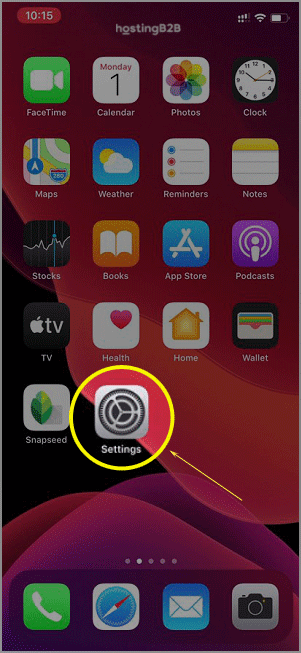
2. Scroll down and tap on Passwords & Accounts.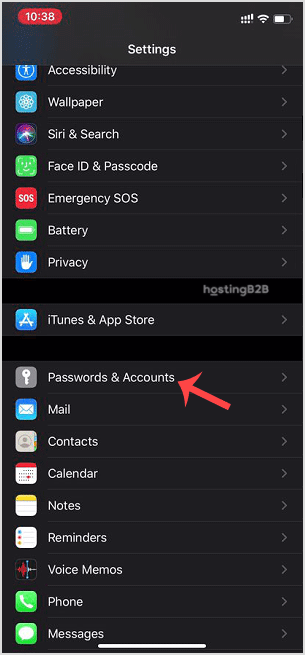

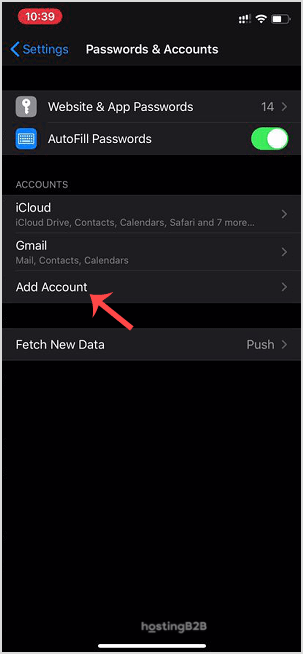
3. Tap on Add Account.
4. Select the Other Option.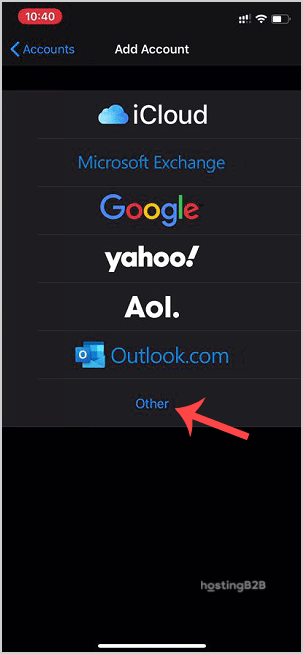
5. Tap on Add Mail Account.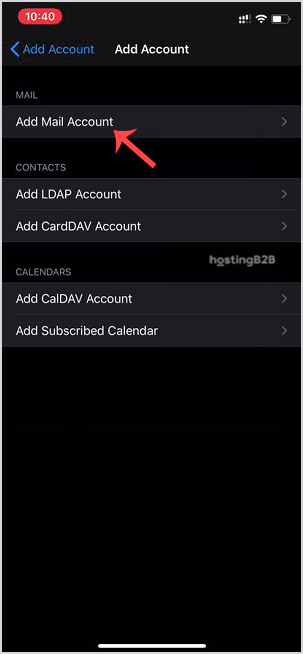
6. Enter the following details:
Email: Your full cPanel Email address.
Description: Add description such as Support Account.
Under Incoming Mail Server, your info should be as follows:
Hostname: Your domain name such as example.com
Username: Your full email address such as [email protected]
Password: Your email password.
Outgoing Mail Server:
Hostname: Your domain name, such as example.com
Username: Your full email address, such as [email protected]
Password: Your email password.
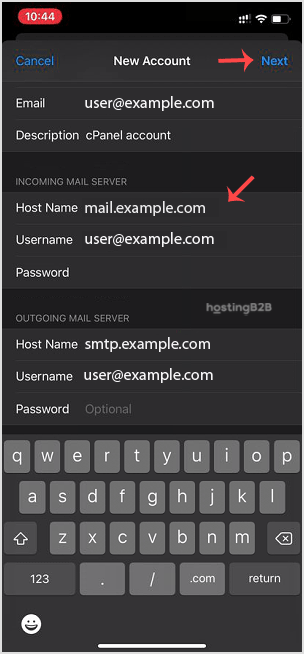
After adding the full details, press the Next button. It can take a few minutes to verify the login details. We recommend ensuring your domain has a valid SSL certificate installed so all email connections are encrypted via SSL/TLS.
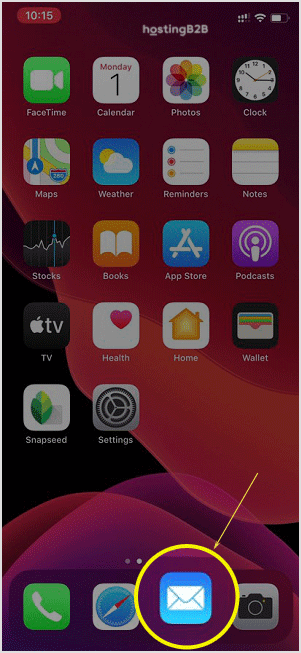
Once the email has been added successfully, you can access your newly added email account from the Apple Mail App.
If you haven’t created your email account yet, follow our guide on how to create an email account in cPanel. You can also access your email via cPanel webmail or set it up on Android devices.