Self-hosting large language models on dedicated AI Infrastructure has become the go-to approach for businesses that need AI without sending sensitive data to third-party APIs — a priority for iGaming, fintech, SaaS, and other regulated industries. In this step-by-step guide, you’ll learn how to host Ollama on a GPU server: from choosing the right hardware at my.hostingb2b.com to running your first model and securing it for production.
What You’ll Need
- A GPU server with an NVIDIA graphics card (options below)
- A Linux operating system (Ubuntu 22.04/24.04 recommended) or NVIDIA DGX OS
- NVMe or SSD storage with at least 100 GB of free space for model files
- Basic familiarity with server administration (or a managed hosting plan)
Step 1: Understand the Ollama GPU Requirements
Ollama is an open-source runtime that turns a server into an Ollama local LLM server, running open-weight models such as Llama 3, Mistral, Qwen, Gemma, and DeepSeek. The key hardware factor is GPU memory — the model must fit into VRAM (or fast unified memory) to run at full speed.
Baseline Ollama GPU requirements by model size:

| Model size | Memory needed | Typical use case |
|---|---|---|
| 3B–8B parameters | 6–12 GB | Chatbots, summarization, internal tools |
| 12B–32B parameters | 16–32 GB | RAG pipelines, coding assistants |
| 70B parameters (quantized) | 40–80 GB | Advanced reasoning, production AI products |
Add 8+ CPU cores and 32 GB+ of system RAM as an overflow buffer. Ollama ships models in quantized (compressed) formats, so a 70B model runs on far less memory than its raw size suggests.
Step 2: Choose Your GPU Server Type
HostingB2B offers two families of GPU infrastructure at my.hostingb2b.com — pick the one that matches your workload and budget.
Option A: ScalAI GPU Hosting plans (flexible, instant activation)
The ScalAI line gives you instantly activated GPU instances with Intel Xeon CPUs, hourly or monthly billing, and 20+ low-latency locations worldwide:
- GPU Gen1 — Lite (4 vCPU / 16 GB RAM / 1 GPU, from €254.02/mo), Starter (8 vCPU / 32 GB / 1 GPU), Pro (2 GPUs), and Max (16 vCPU / 64 GB / 4 GPUs, from €1015.99/mo)
- GPU Gen2 — the same tier structure with NVIDIA A2 GPUs, from €292.12/mo (Lite+) up to Max+ with 4 GPUs
ScalAI plans come with popular AI models such as LLaMA, Stable Diffusion, and Whisper preinstalled, and higher-end NVIDIA GPUs — A100, H100, L40S, and L4 — are available for demanding workloads. Best for: getting started fast, elastic scaling, and running 3B–14B models in production.
Option B: Dedicated GPU servers (maximum performance, UK location)
For heavier models and full bare-metal control, choose a dedicated GPU server:
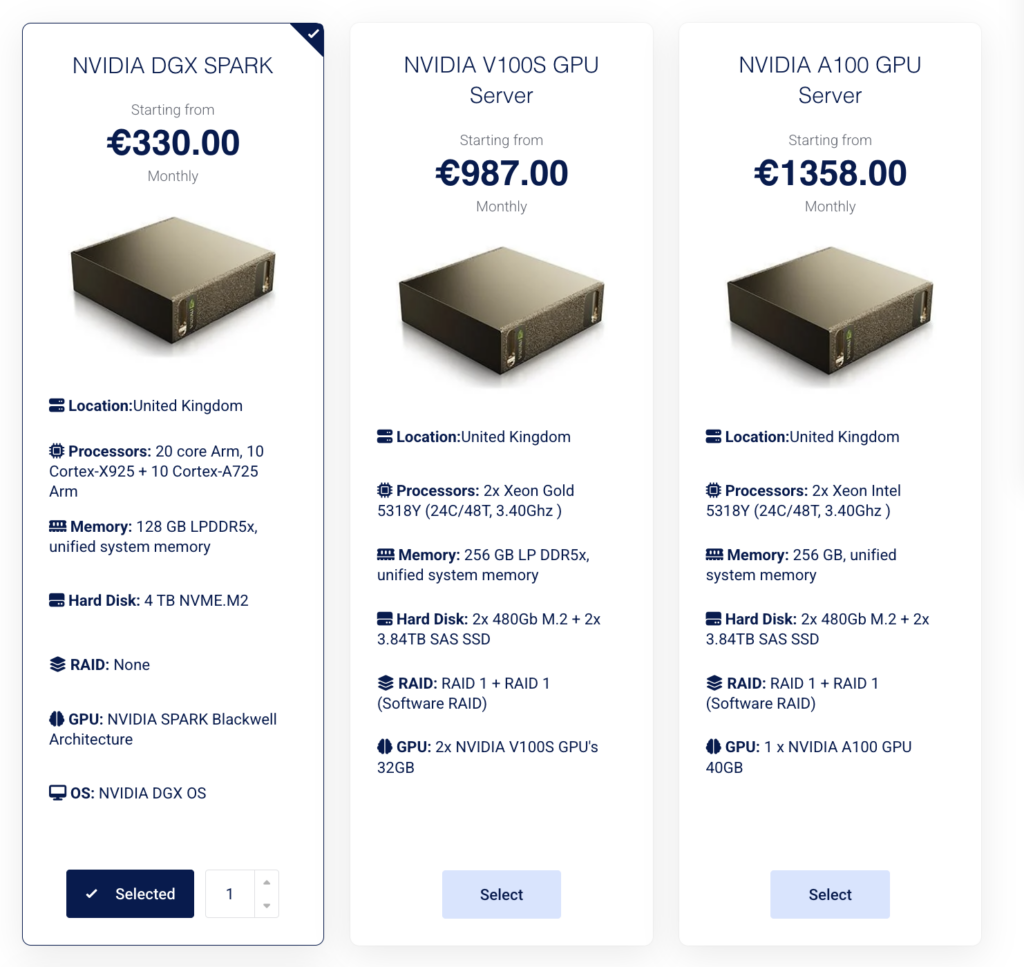
- NVIDIA DGX Spark — from €330/month. 20-core Arm CPU, 128 GB LPDDR5x unified memory, 4 TB NVMe, Blackwell-architecture GPU, NVIDIA DGX OS. The unified memory lets Ollama load quantized 70B-class models at an entry-level price.
- NVIDIA V100S GPU Server — from €987/month. 2x Xeon Gold 5318Y, 256 GB RAM, RAID 1 storage, 2x V100S GPUs (64 GB VRAM total). Ollama splits model layers across both GPUs — ideal for 30B–70B models or several smaller models served in parallel.
- NVIDIA A100 GPU Server — from €1358/month. 2x Xeon 5318Y, 256 GB RAM, RAID 1 storage, 1x A100 40 GB. The data-center standard for inference speed — best for customer-facing, latency-sensitive AI products.
Quick guidance: ScalAI Gen1/Gen2 for prototypes and small-to-mid models; DGX Spark for large models on a budget; V100S for multi-GPU capacity and redundancy; A100 for maximum production throughput.
Step 3: Prepare the Server
Once your server is provisioned:
- Verify the operating system. The DGX Spark ships with NVIDIA DGX OS — an AI-optimized system with GPU drivers preconfigured. ScalAI and dedicated servers run standard Linux distributions.
- Confirm GPU drivers are present. The server needs official NVIDIA drivers and the CUDA toolkit — the layer that lets software talk to the graphics card. On HostingB2B GPU servers these arrive pre-installed and verified; the support team confirms driver status on request.
- Check storage headroom. Model files range from 2 GB to 40+ GB each, so keep at least 50 GB free on the NVMe volume.
Step 4: Install Ollama
Ollama provides an official one-step installer for Linux. Running it downloads the runtime, registers Ollama as a background system service, and starts it automatically — from that point it launches on every reboot with no manual intervention. The whole process takes under five minutes on an NVMe-equipped server. On ScalAI plans with preinstalled AI model stacks, this step may already be done for you.
Step 5: Make Ollama Use the GPU
Here’s the good news: you rarely need to do anything special to make Ollama use GPU acceleration. The runtime detects compatible NVIDIA hardware automatically and offloads as many model layers as possible to GPU memory. On the dual-GPU V100S server or a 4-GPU ScalAI Max plan, Ollama distributes layers across all cards on its own.
To verify: the service logs explicitly state whether the GPU was detected, and GPU monitoring tools show memory usage climbing the moment a model loads. If a model exceeds available VRAM, Ollama transparently splits the load between GPU and CPU.
Step 6: Download and Run Your First Model
Pulling a model is a single action — specify the model name (for example, “llama3.1” or “mistral”), and Ollama downloads the weights and makes the model available within minutes. Start with an 8B model to confirm everything works, then scale up to the largest model your GPU memory allows.
Step 7: Connect Your Applications via the OpenAI-Compatible API
Out of the box, Ollama works as an Ollama OpenAI compatible API server: it exposes endpoints that mirror the OpenAI API format. In practice this means:
- Applications built for GPT models switch to your self-hosted models by changing only the API base URL and model name — no code rewrite.
- Frameworks like LangChain and LlamaIndex, plus the official OpenAI client libraries, connect without modification.
- You can A/B test commercial and self-hosted models with minimal engineering effort.
Step 8: Secure the Deployment for Production
By default, Ollama listens only on the local machine — keep that posture and add standard hardening before opening access:
- Never expose the API directly to the public internet. Place a reverse proxy with TLS and authentication in front of it, or restrict access via VPN or a private network.
- Firewall and access control. Allow connections only from known application servers or office IP ranges; HostingB2B DDoS protection adds a further layer for public-facing endpoints.
- Monitoring. Track GPU utilization, memory usage, latency, and uptime; alert on anomalies before users notice degradation.
- Backups and redundancy. The RAID 1 storage on the V100S and A100 dedicated servers protects against disk failure; back up configurations and fine-tuned models separately (for example, with Acronis Cyber Protect), and consider a standby server for business-critical AI features.
- Updates. Ollama evolves quickly — schedule regular runtime and driver updates in your maintenance window.
Conclusion
That’s the complete path to host Ollama on a GPU server: size your model against the GPU requirements, pick the right server type at my.hostingb2b.com — a flexible ScalAI plan, the budget-friendly DGX Spark, the multi-GPU V100S, or the high-throughput A100 — install the runtime, verify GPU acceleration, and harden the API for production. For teams that want to skip the setup entirely, HostingB2B’s managed services deliver a ready-to-use Ollama local LLM server with drivers, security, and monitoring configured — so your developers connect through the OpenAI-compatible API and start building on day one.