

A guide to help you export a database table in cPanel via phpMyAdmin. Database export is useful for backups and migrations on your web hosting account.
1. First log into your cPanel account.
2. Then in the Databases section, click on the phpMyAdmin icon.


3. After that in the left side-bar, click on the expand button to expand the database like “example”.
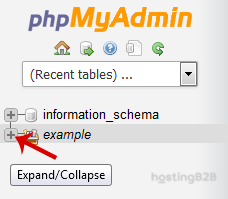
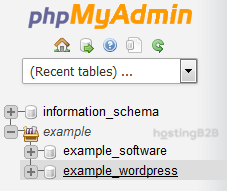
4. Under your cPanel username, you can see a list of all databases. Please select an appropriate database which you want to export it to your PC.
5. Click on the Export button.

6. Finally select SQL format and then click on the Go button.
SQL file will be downloaded within a few seconds, but If a size is large, then it will take a long time.
You have successfully exported a database table via phpMyAdmin in cPanel. For a full account backup including files and emails, see our full cPanel backup guide. For automated backups, consider Acronis Cyber Protect. To edit or optimize tables, see our guides on editing database tables and optimizing databases.








