
A simple guide to help you change the password of an FTP account in DirectAdmin. Regularly rotating FTP passwords is a critical security practice for your web hosting account.
1. Log in to your DirectAdmin Account.
2. In the Account Manager section, click on the FTP Management Icon or type FTP Management in the navigation filter box, and then the option will appear. Click on it.

3. Under Account, click on the Account for which you wish to change the password.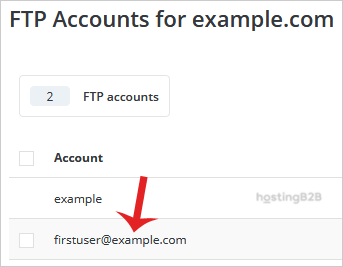
4. In the Enter Password field, enter your new password or use a password generator, and do not forget to copy the password in a safe place.
5. Click the Modify button.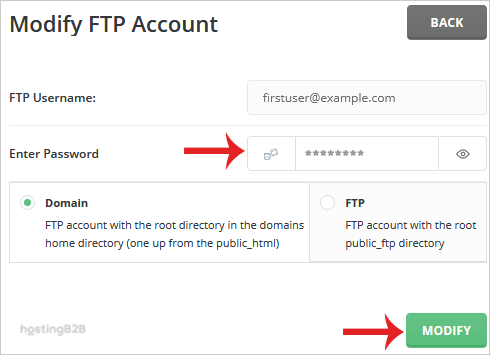
You have successfully changed the FTP Account’s password in DirectAdmin. For related FTP management, learn how to create a new FTP account, suspend an FTP account, or remove an FTP account in DirectAdmin. Always use SFTP with an SSL certificate for encrypted file transfers.








