

A simple guide to help you delete a database table in cPanel via phpMyAdmin. Database management is a core feature of our web hosting plans.
1. Log into your cPanel account.
2. In the Databases section, click on the phpMyAdmin icon.


3. In left side-bar, Click on the expand button to expand the database like “example”.
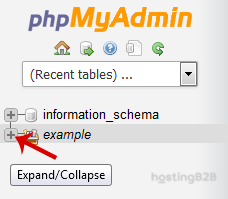
4. Under your cPanel username, you can see a list of all databases. Select the appropriate database, and it will be expanded and show tables of SQL.
5. Select appropriate table you want to delete like If you want to delete table “wp_links” then click on it.
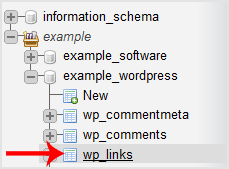
6. Now click on the Operations option.

7. Scroll down and then click on the Delete the table (DROP).
Warning: The whole table will be removed, and it will be impossible to restore it specially If you don’t have a backup. We strongly recommend generating a full cPanel backup before deleting any database tables.
You have successfully deleted a database table via phpMyAdmin in cPanel. For database repair and optimization, see our guides on repairing a MySQL database and optimizing databases via phpMyAdmin.








