
A simple guide to help you remove a subdomain in cPanel. Cleaning up unused subdomains helps keep your web hosting environment organized and secure.
1. First log into your cPanel account.
2. After that go to the Domains section, click on Subdomains Icon.


3. Then under the Modify a Subdomain list you can see a list of subdomains.
4. Following this you can now click the Remove option under the Actions tab.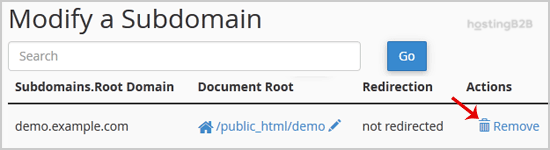
5. Finally you will receive a warning that you are removing a subdomain.example.com. Click on the Delete Subdomain button to remove your subdomain permanently.
You have successfully removed your subdomain via cPanel. Before removing subdomains, we recommend generating a full cPanel backup first. To create a new subdomain, see our guide on how to create a subdomain in cPanel. You can also redirect a subdomain to an external URL instead of removing it.








