
You can rename a MySQL database from cPanel. HostingB2B web hosting includes cPanel, so you can rename a database and then update the name in the application config file.
An easy guide to help you rename a database in cPanel. This feature is available on all our web hosting plans with cPanel.
1. Log into your cPanel account.
2. In the Databases section, click on MySQL Databases Icon.


3. Under Current Databases,
Have a question about renaming a database in cPanel? Chat with our support team on Telegram.
You can see a list of all your databases. Locate the Database and then click on Rename Icon.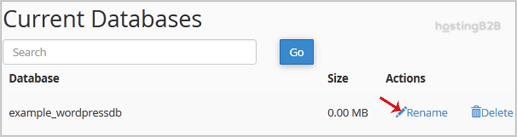
4.
Prefer WhatsApp? Chat with HostingB2B about renaming a database in cPanel.
Change the database name and then click on the Proceed button.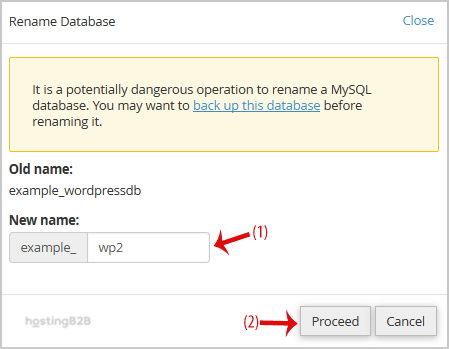
Host the site with HostingB2B
Review HostingB2B web hosting, or talk to us about a cPanel plan if you need help with databases.
You have successfully renamed a database in cPanel. Important: After renaming, update the database name in your application’s configuration file (e.g., wp-config.php for WordPress). For related database management, see how to create a database, manage user privileges, or create a database username in cPanel.