

A step by step guide to help you install PHP-Nuke via Softaculous in cPanel. All our web hosting plans include Softaculous.
1. Log into your cPanel account.
2. In the Software section, click on the Softaculous App Installer Icon.
3. cPanel will redirect you to the Softaculous Panel.

4. On the left side of your screen, you should locate the Portal/CMS category. Click on it and then click on the PHP-Nuke link that will appear.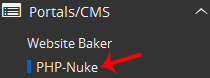
5. Click on the Install button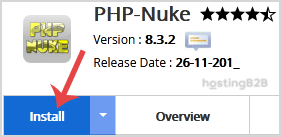
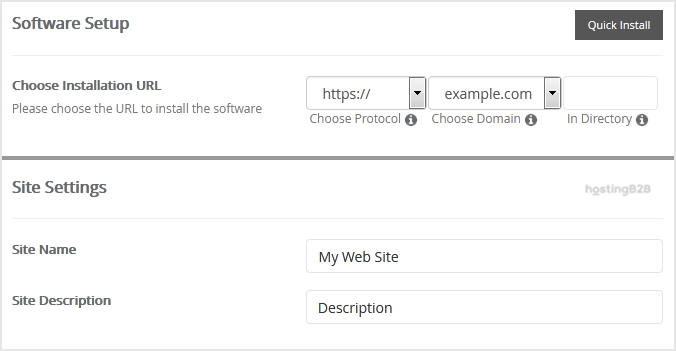
6. Fill the necessary field, under the Software Setup field:
- Choose Installation URL: Choose the appropriate protocol/domain. Inside the “In Directory” field, enter the directory name or leave blank for main domain.
7. Under Site Settings field:
- Site Name: Enter the name of your website.
- Site Description: Site Description.
8. Under the Admin Account field:
- Admin Username: The default username is Admin.
- Admin Password: Use a strong password.
- Real Name: Leave this as it is or use your full name.
- Admin Email: Your e-mail address.
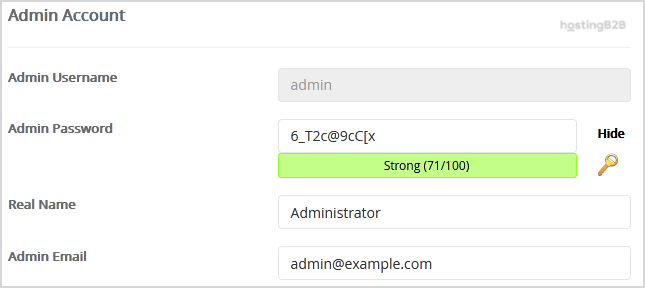
Note: Copy the admin username and password on a notepad.
9. Advanced Options: Leave this as it is unless you want to change the database name or take an automated backup.
Finally, scroll down to the end of the page and click on the Install button.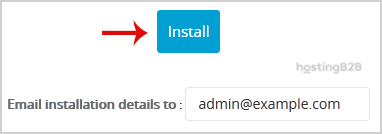
You have successfully installed PHP-Nuke via Softaculous in cPanel. Secure your site with an SSL certificate and DDoS protection. For other CMS options, see WordPress or Drupal.








