
Deploying a community discussion board adds significant value to your website. This guide provides a clear and straightforward process to install Beehive forum software using the Softaculous one-click installer directly within your SiteWorx control panel. Follow these steps to get your forum running in minutes.
Accessing Softaculous in Your SiteWorx Panel
Your journey begins inside your SiteWorx hosting control panel which is the management hub for your website. From here you can access the powerful Softaculous one-click installer a tool designed to simplify application deployment.
- Log into your SiteWorx account. This is typically accessed via a URL like www.example.com:2443/siteworx/.
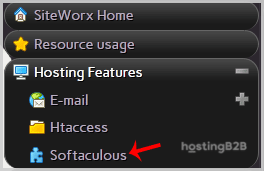
- From the main dashboard locate the Hosting Features section in the left-hand menu. If it’s not expanded click to open it.
- Click on the Softaculous option to launch the auto-installer interface. If you need more detailed guidance you can review our guide to access Softaculous in SiteWorx.

Locating and Installing Beehive Software
Once you are inside the Softaculous dashboard you have access to hundreds of applications. Finding the Beehive forum software is a quick process using the built-in category navigation.

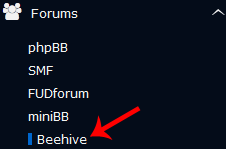
- In the left-hand navigation menu find and click on the Forums category.
- A list of available forum applications will appear. Click on the Beehive link from this list.
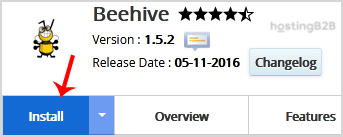
- On the Beehive overview page click the prominent Install button to proceed to the configuration screen.
Configuring Your Beehive Installation Settings
This section requires you to define where and how Beehive will be installed on your domain. Careful configuration here ensures your forum operates correctly from the start.
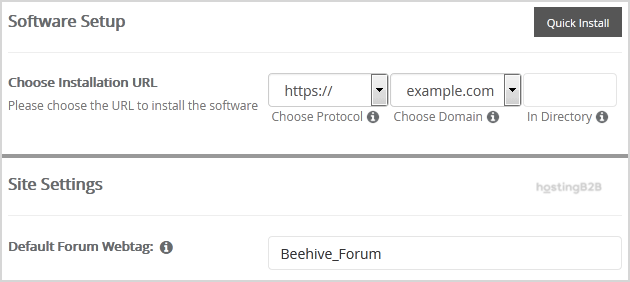
- Choose Installation URL Select the correct protocol (http or https) and the domain name for your forum. We strongly recommend using https for security.
- In Directory This field is critical. To install the forum on your main domain (e.g. example.com) leave this field empty. To install it in a subfolder (e.g. example.com/forum) enter the directory name here. Do not use an existing directory unless it is empty.
- Default Forum Webtag Enter a name for your forum such as MyBeehive_Forum. This is an internal identifier.
Creating Your Secure Administrator Account
Every forum needs an administrator to manage users and content. The details you enter here will be your primary login credentials. It is vital to secure this account properly.
- Admin Username Choose a unique username. For security reasons avoid generic names like “admin” or “administrator”.
- Admin Password Create a strong and complex password. Use a combination of upper and lower-case letters, numbers and symbols.
- Admin Email Provide a valid email address. This address is used for password resets, important notifications and other administrative communications.
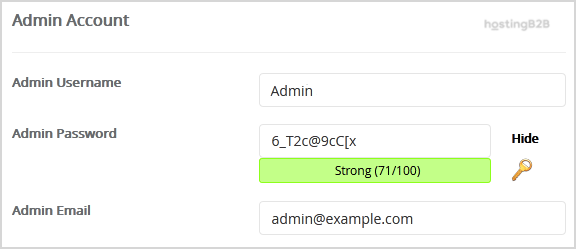
Important Note: Be sure to copy your new admin username and password and store them in a secure location. You will need them to log into your Beehive forum’s administration area for the first time.
Finalizing the Installation Process
Before completing the setup you have one final set of options to review. For most users the default settings here are sufficient.
- Advanced Options You can leave this section as it is. However you can use it to specify a custom database name or configure automated backups. Be aware that frequent backups can consume significant disk space.
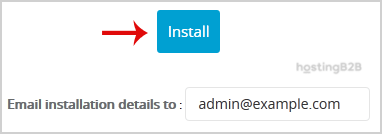
- Scroll to the bottom of the page and click the final Install button. Softaculous will now validate your settings and install the Beehive software.
Post-Installation Check and Verification
Congratulations you have successfully completed the Beehive forum software installation. The final step is to verify that everything is working as expected. Visit the installation URL you configured and attempt to log in using the administrator credentials you created. Once logged in you can begin customizing your new community forum. For complex deployments consider our Managed Application Hosting services for expert support.
Frequently Asked Questions
Beehive is a simple and effective software package for creating online discussion boards or community forums. It provides essential features for user registration, posting topics and managing conversations.
Softaculous is an auto-installer that automates the entire setup process. It handles database creation file placement and basic configuration saving you time and reducing the risk of manual errors.
Yes. During the configuration step in the “In Directory” field simply enter the name of the folder you wish to use such as “community”. If you leave it blank the forum will be installed on your main domain.
If an error occurs, double-check your installation settings, especially the directory name and database prefix. Ensure the target directory does not already exist with files in it. If problems persist, contact our support team for assistance.
Softaculous supports a wide range of applications. You can follow a similar process to install other forum software via Softaculous by selecting a different application from the “Forums” category in the installer.








