
Creating a separate FTP account in SiteWorx is essential when you need to grant file access to a developer, contractor, or client without exposing your primary account credentials. Your main SiteWorx login provides root-level access, which is too permissive for most collaborative tasks. This guide provides a clear, step-by-step process to create a secure FTP user account and restrict its access to a specific folder, safeguarding your core website files.
Why Create a Separate FTP Account
Using your primary SiteWorx username and password for FTP grants complete access to all files and folders within your hosting account. While convenient, this poses a significant security risk if those credentials are ever compromised. By creating a separate SiteWorx FTP user account, you can enforce the principle of least privilege. This means granting a user only the access they absolutely need to perform their job, such as uploading files to a single directory, which is a core feature of our secure Web Hosting solutions. Always use SFTP or FTPS with a valid SSL certificate instead of plain FTP when transferring sensitive files to prevent credential interception.
How to Create a SiteWorx FTP User Account
Follow these instructions carefully to set up a new FTP user with restricted permissions inside your SiteWorx control panel.

- Log into your SiteWorx account. This is typically accessed via your domain with port 2443, for example, www.example.com:2443/siteworx/.
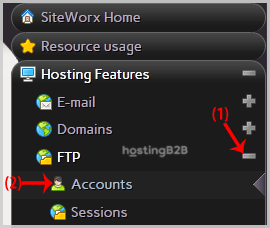
- From the main dashboard, locate the SiteWorx Menu on the left. If the Hosting Features section is not already open, click to expand it.
- Click the FTP menu item, and then select the Accounts option from the submenu that appears.

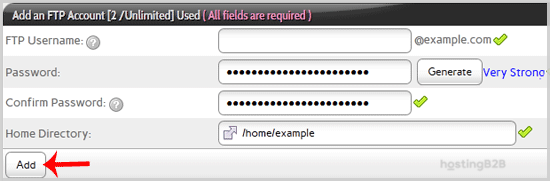
- You will now see the Add an FTP Account form. You must complete the following fields with care.
- FTP Username Enter a unique username for the new account, such as NewFTPUser.
- Password Type a strong, unique password in both the password and confirm password fields. Alternatively, use the Generate button to create a secure password automatically.
- Home Directory This is the most important step for restricting access. By default, it may show the root path. To limit the user to a specific folder, you must change this value. For example, to grant access only to a folder named ‘uploads’ inside your public web directory, you would enter a path like /home/youruser/yourdomain.com/html/uploads. Always verify the exact path on your server.
- After verifying all the details, click the Add button to create the account.
Connecting with Your New FTP Login Details
Once the account is created, you can use the following credentials in an FTP client like FileZilla or Cyberduck to manage your website files. The process is straightforward, and we have a detailed guide if you need to connect to your FTP account via FileZilla.
- Host: Your website’s IP address or your domain name prefixed with ftp, such as ftp.example.com.
- Username: The full FTP username you created, which includes your domain, for example, [email protected]
- Password: The password you set for this specific FTP account.
- FTP Port: Port 21, which is the default port for FTP.
Managing Your SiteWorx FTP Accounts
Proper account lifecycle management is a key part of maintaining server security. From the same FTP Accounts screen in SiteWorx, you can see a list of all existing FTP users. This interface allows you to perform critical maintenance tasks. For instance, you can easily change the password of your FTP account if you suspect it has been compromised. When access is no longer needed, it is vital that you delete an FTP account in SiteWorx to remove the potential entry point. For environments requiring the highest level of security and control, consider our Dedicated Server Hosting options. If you need assistance with FTP configuration, access controls, or server hardening, our managed services team is available 24/7.
Frequently Asked Questions
Yes, you can create multiple FTP accounts. This is highly recommended for situations where different users or applications need access to different directories, as it allows you to maintain granular control over your file system.
If you specify an incorrect or nonexistent path for the Home Directory, the FTP user will likely encounter an error upon logging in or may be placed in a default directory with no permissions. It is crucial to verify the exact server path before creating the account.
This is the intended behavior of a restricted FTP account. If you correctly set the Home Directory to a specific subfolder, the user will only be able to see and interact with files and folders within that designated directory. They are effectively jailed within that path for security.
You can typically find your website’s dedicated IP address within your SiteWorx control panel, often on the main dashboard or in a server information section. However, using your domain name like ftp.example.com is usually sufficient and easier to remember.
Standard FTP transmits data, including usernames and passwords, in plain text. For transferring sensitive information, it is always better to use a secure alternative like SFTP (SSH File Transfer Protocol) or FTPS (FTP over SSL) if your hosting plan supports it, as these protocols encrypt the connection.








