
In a few steps you can change the password of an email account in DirectAdmin. Regularly updating your email credentials is a critical security practice for your web hosting account.
1. Log in to your DirectAdmin Account.
2. In the E-mail Manager section, click on the E-mail Accounts Icon or type E-mail Accounts in the navigation filter box, and then the option will appear. Click on it.


3. Under Account, you can see your email address along with the Plus icon on the right-hand side.
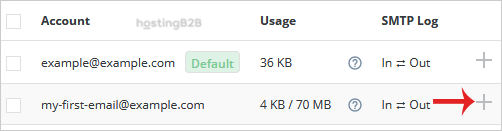
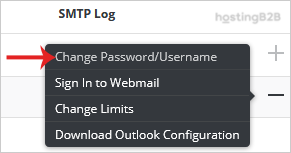
4. Click on the Plus icon and then on the Change Password/Username option.
5. In the Password field, enter your new password or use a password generator.
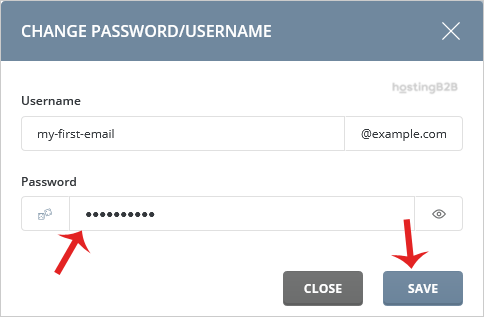
6. Click on the Save button.
Your email password will be changed, and it will display your password. Copy it in a safe place.
You have successfully changed the password of an email account in DirectAdmin. After changing your password, remember to update the credentials on all devices and email clients (Outlook, Thunderbird, mobile apps). For related guides, learn how to rename your email address, access your email via webmail, or create new email accounts in DirectAdmin. For enterprise-grade email with advanced security features, explore our dedicated email hosting solutions.








