
You can enable or disable allow_url_fopen from the CloudLinux selector in cPanel. HostingB2B web hosting includes CloudLinux, so you can change this PHP option without a server-level edit.
You can use CloudLinux Selector to enable/disable the allow_url_fopen directive in cPanel.
1. Firstly log into your cPanel account.

2. After that go to the Software section and click the Select PHP Version.

Have a question about enabling or disabling allow_url_fopen in cPanel? Chat with our support team on Telegram.
3. Then Click on the Options menu.

Note: If the Options page shows an error related to the native PHP version, change it to a non-native version first.
Prefer WhatsApp? Chat with HostingB2B about enabling or disabling allow_url_fopen in cPanel.
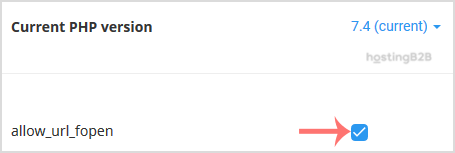
4. Finally to enable allow_url_fopen, check the allow_url_fopen box. To disable it, uncheck it.
Host the site with HostingB2B
Review HostingB2B web hosting, or talk to us about a cPanel plan if you need help with PHP settings.
Visit our blog for more knowledgebase articles !
The post Enable/Disable PHP’s allow_url_fopen using Cloudlinux Selector in cPanel appeared first on HostingB2B.