Deploying a graphical user interface (GUI) on a headless system can significantly bridge the gap between complex terminal management and intuitive server administration. While Linux power users often swear by the command line, certain modern workflows—such as complex database management, multi-tab web testing, or running legacy Windows apps via Wine—demand a visual workspace. By transforming your standard installation into an Ubuntu Remote Desktop, you gain the flexibility of a high-performance workstation accessible from anywhere in the world. This setup is particularly effective for teams transitioning to the cloud, as it reduces the steep learning curve associated with pure Linux server environments.
For many administrators, managing infrastructure through a CLI (Command Line Interface) is standard practice. However, certain tasks—such as using a web browser for local configurations, visual file management, or running specific apps—are much easier with a desktop environment. This is especially relevant if you are using an RDP VPS, where a graphical interface becomes your primary workspace.
Adding a GUI to a headless Ubuntu Server requires two parts: installing the Desktop Environment (DE) and configuring the Remote Desktop Protocol (xrdp).
1. Update Your System
Before adding heavy graphical packages, ensure your system is up to date to avoid dependency conflicts.
sudo apt update && sudo apt upgrade -y2. Choosing Your Desktop Environment
The choice of GUI depends on your server’s resources. For a balance of speed and usability, we recommend XFCE.
- Option A: GNOME – The default Ubuntu look. Modern but resource-heavy.
- Option B: XFCE (Recommended) – Lightweight, stable, and perfect for VPS environments.
- Option C: MATE – A classic desktop experience that is light on RAM.
To install the XFCE environment, run:
sudo apt install xubuntu-desktop3. Confirming the Installation (The “Y” Prompt)
Once you run the install command, Ubuntu will begin analyzing and resolving all required dependencies to ensure every component is installed correctly. Since a full desktop environment includes hundreds or even thousands of packages—ranging from graphical interfaces to background services—the system will prompt you to confirm the installation before proceeding with downloading and configuring everything.
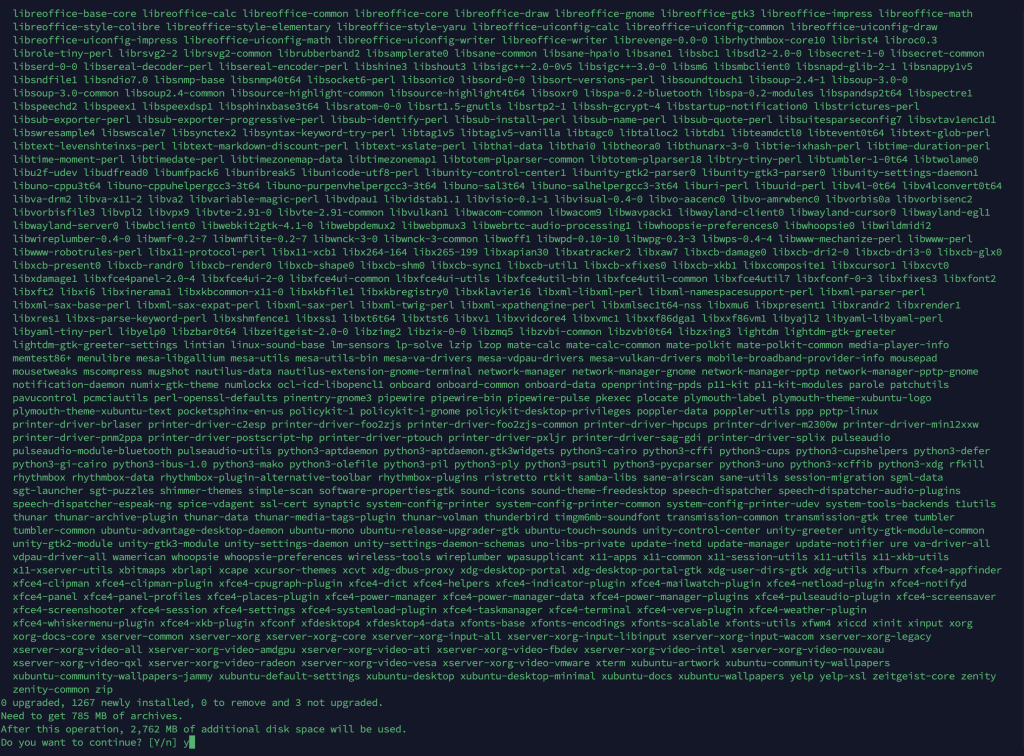
As seen in the screenshot, the system summarizes the operation:
- Packages to install: ~1,200+
- Download size: ~785 MB
- Disk space required: ~2.7 GB
When prompted with Do you want to continue? [Y/n], type Y and press Enter.
Pro Tip: The “-y” Flag If you want to skip this manual confirmation in the future, you can add -y to your command: sudo apt install xubuntu-desktop -y. This tells Ubuntu to automatically accept the disk space usage and start the download immediately. This is a “fire and forget” approach—perfect for when you want to start an installation and walk away to grab a coffee.
4. Setting Up Remote Access (xrdp)
Since you are likely connecting to your server remotely, you need a way to see the screen. This is where xrdp comes in.
sudo apt install xrdp -yAfter installation, you must tell the RDP server to use XFCE by default:
echo "xfce4-session" > ~/.xsession
sudo systemctl restart xrdp
5. How to Connect
Now that your GUI is ready, you can access it from your local machine:
- Windows: Use the built-in “Remote Desktop Connection” app.
- macOS: Download the official Microsoft Remote Desktop app from the App Store.
- Linux: Use Remmina.
Enter your server’s IPv4 address, provide your login credentials, and you will be greeted by the XFCE desktop instead of a black console window.
Management Tip
If you no longer need the GUI and want to free up RAM for server-side tasks, you can stop the display manager at any time:
sudo systemctl stop lightdmFrequently Asked Questions (FAQ)
Can I install a GUI on Ubuntu Server without a monitor?
Yes. Since Ubuntu Server is typically headless, you can install a Desktop Environment (DE) like XFCE or GNOME via SSH. Once installed alongside xrdp, you can access the graphical workspace remotely from any Windows, macOS, or Linux machine using Remote Desktop Protocol (RDP).
2. What is the most lightweight GUI for an Ubuntu VPS?
While GNOME is the default, XFCE (Xubuntu) is widely considered the best lightweight GUI for Ubuntu Server. It consumes minimal RAM and CPU, making it ideal for RDP VPS environments where maximizing server resources for applications is a priority.
3. Is it possible to use Remote Desktop (RDP) on Ubuntu Server?
Absolutely. By installing the xrdp package, Ubuntu Server can accept incoming connections from the Windows Remote Desktop Connection app. This allows for a seamless “Windows-like” experience when managing your Linux files and web browsers visually.
4. How do I fix the “black screen” issue after Ubuntu GUI installation?
A common “black screen” on remote desktop is often caused by the server trying to launch the wrong session. Ensure you have configured your .xsession file to point to your installed environment (e.g., echo "xfce4-session" > ~/.xsession) and restart the xrdp service to apply the fix.
Conclusion
Successfully installing a GUI on your Ubuntu Server transforms a rigid command-line environment into a versatile, user-friendly workstation tailored to your specific needs. Whether you choose the feature-rich GNOME or the resource-efficient XFCE, the ability to manage your infrastructure visually through Remote Desktop (RDP) offers a significant boost to administrative productivity. This configuration provides the perfect balance for developers and businesses that require the stability of a Linux VPS with the accessibility of a desktop OS. If you encounter any issues during the setup or require a high-performance RDP-optimized server, our technical support team is available 24/7 to assist with your deployment. Elevate your hosting experience today by leveraging the full power of a graphical interface on our globally distributed infrastructure.
Skip the setup, or run it yourself
.xsession file, no black-screen troubleshooting.