Managing email accounts is a routine but critical task for any system administrator. Whether you are offboarding a former employee or cleaning up unused mailboxes, knowing how to properly remove an email account in SiteWorx is essential. This guide provides a complete SiteWorx email account deletion tutorial, including crucial steps to safeguard your data before proceeding.
Important Considerations Before Deleting an Email Account
Before you remove a mailbox in SiteWorx, it is vital to understand that this action is permanent and results in the complete removal of all associated data. Once an account is deleted, all emails, contacts, and calendar entries stored within that mailbox will be gone forever. There is no undelete function or recycle bin for this process.
To prevent accidental data loss, we strongly recommend you generate a full backup of your SiteWorx account. A complete backup ensures you have a secure copy of all information, which can be critical for compliance, archival, or if you ever need to access the data in the future.
Step-by-Step Guide to Remove an Email Account in SiteWorx
Follow these instructions carefully to permanently delete an email address from your SiteWorx control panel. Ensure you have selected the correct account before confirming the deletion.
- Log into your SiteWorx Account
Access your SiteWorx control panel. The URL typically follows the format of www.example.com:2443/siteworx/. - Navigate to the Email Section
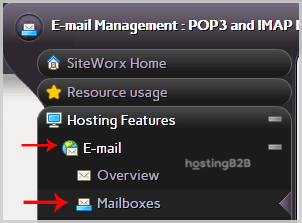
From the main dashboard, locate the Hosting Features section in the left-hand menu. If the menu is collapsed, click to expand it. - Access the Mailboxes Area
Within the Hosting Features menu, select the E-mail item and then click on the Mailboxes option to view all existing email accounts.
- Select the Email Account for Deletion
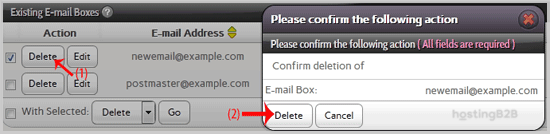
Under the Existing E-mail Boxes tab, you will see a list of all configured mailboxes. Find the specific email address you wish to remove, check the box next to it, and then click the Delete button. - Confirm the Deletion
SiteWorx will ask for a final confirmation to prevent accidental deletion. Review your selection one last time. To permanently remove the account and all its data, click the Delete button again.
After you confirm the action, a success message will appear at the top of the screen, notifying you that the email address has been successfully removed. If you need to add a new user, you can follow our guide to create a new email account in SiteWorx.
For businesses that require robust security and advanced features, consider upgrading to a professional email hosting solution. If you prefer to offload infrastructure tasks, our Managed IT Services can handle all aspects of your server and email management.
Frequently Asked Questions
No, deleting an email account in SiteWorx is a permanent action. Once the account is removed, it cannot be recovered. This is why creating a backup before deletion is a critical step.
Yes. The deletion process permanently removes the mailbox and all of its contents, including all received and sent emails, contacts, and any other stored data.
The most reliable method is to generate a complete backup of your entire SiteWorx account, which includes all mailboxes. You can also use a desktop email client like Outlook or Thunderbird to connect to the account and export the data to a local file before you proceed with deletion.
After you delete the email address, any incoming emails sent to it will be rejected. The sender will receive a bounce-back message indicating that the user does not exist.