This guide explains step by step how to renew an SSL Certificate through the HostingB2B client portal and complete the mandatory Re-Issue using DNS validation. HostingB2B provides a wide range of SSL Certificates that can be purchased directly through our website. When the renewal is completed before the SSL expiration date, the process is seamless and does not cause any downtime.
Prerequisites
Before you begin, make sure that:
- You have access to our portal my.hostingb2b.com
- You can manage the DNS records of your domain
- The domain is pointing to the correct server
- You have an existing CSR generated from your server
The private key (.key) is safely stored on the server where the SSL will be installed
If you do not already have a CSR, you can generate one by following our step-by-step guide on how to generate a Certificate Signing Request (CSR) in cPanel.

Step 1: Log in to HostingB2B Portal
- Log in to your my.hostingb2b.com
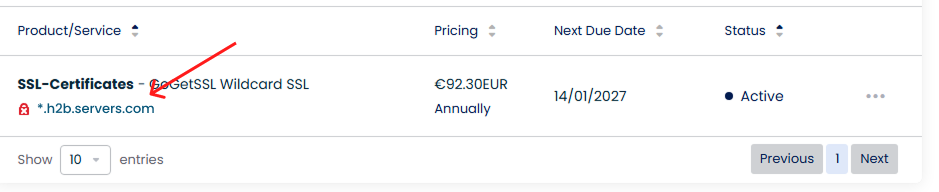
- Navigate to Manage Services → My Services
- Select the active SSL Certificate
Step 2: Renew the SSL Certificate
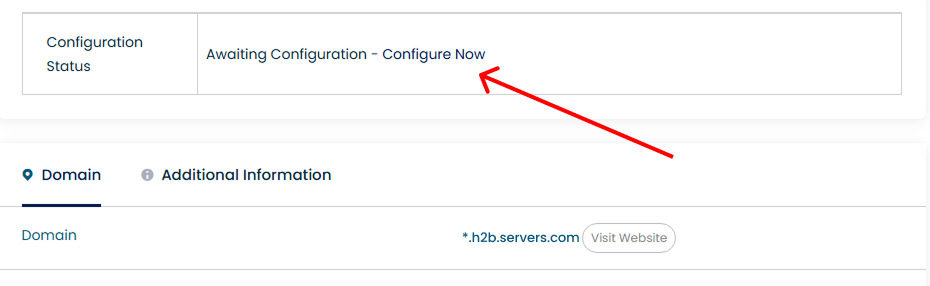
- Click Awaiting Configuration – Configure Now
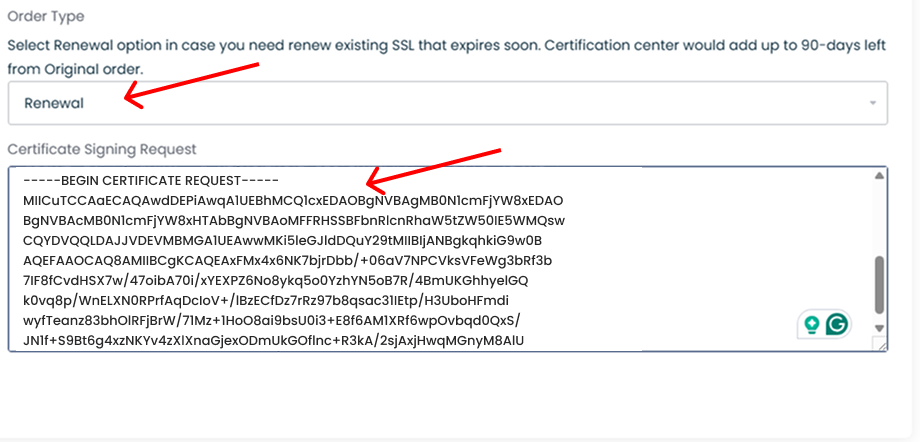
- Choose from Order Type Renew
- In Certificate Signing Request paste the .csr file you already have
- In Job Title write “Director”
- Press Continue
We strongly recommend renewing the SSL at least 7 days before expiration.
Step 3: Select Validation Method
In this step you have to choose the validation method. Choose “DNS” and then press Continue.
If you are not familiar with DNS records or how DNS management works, we recommend reading our guide on advanced DNS management before proceeding.
Step 4: Configuration Complete
- Click “Awaiting Configuration – Configure Now”Back to Service Details” Button
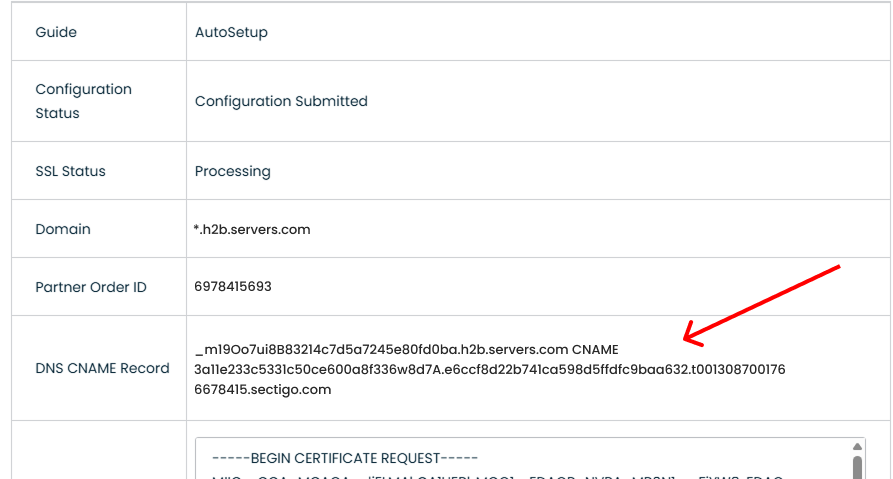
- Copy the DNS CNAME Record and update the CNAME you already may have on your DNS, or create a new DNS CNAME record
- If your DNS is on Cloudflare, then open it.
- Find your Domain
- Click on the left bar the “DNS”
- Click “Add New”
- On type choose “CNAME”
- In the Name field, insert the first value provided in our portal
(example:_m19Oo7ui8B83214c7d5a7245e80fd0ba.h2b.servers.com) - In the Target field, insert the second value provided in our portal
(example:3a11e233c5331c50ce600a8f336w8d7A.e6ccf8d22b741ca598d5ffdfc9baa632.t0013087001766678415.sectigo.com) - Click Save
- Wait some time for the propagation, and then get back to our portal, and you will see the Certificates. Copy each certificate in the order shown and paste them into a text editor, starting with the domain certificate, followed by the CA bundle, and save the file as
.crt
What you need to do:
- Log in to your DNS provider (cPanel, Cloudflare, domain registrar, etc.)
- Add a CNAME record with:
- Name / Host: exactly as shown in my.hostingb2b.com
- Value: exactly as provided
- Save the DNS record
Do not modify the value or add extra characters or spaces.
Step 5: Validation & SSL Issuance
- Return to my.hostingb2b.com
- Click Check Validation or wait for the automatic verification
DNS validation usually completes within 5–30 minutes, depending on DNS propagation.
Common Issues & Troubleshooting
DNS validation fails
- Ensure the CNAME record matches exactly
- Allow 10–15 minutes for DNS propagation
- Remove old CNAME records from previous Re-Issues
SSL still shows as expired
- Clear browser cache
- Check using an SSL checker
- Confirm the Re-Issue process is completed
Important Notes
- DNS validation is the most reliable verification method
- No downtime occurs if the process is completed on time
Need Assistance?
The HostingB2B technical team can assist with:
- SSL Renewal & Re-Issue
- DNS validation
- SSL installation verification
Please contact us via a support ticket.
FAQs
No, SSL renewal via the HostingB2B WHMCS portal does not cause downtime, provided the renewal is completed before the certificate expiration date.
DNS validation is required to verify domain ownership during the SSL re-issue process and is the most reliable validation method supported by certificate authorities.
DNS validation usually completes within 5–30 minutes, depending on DNS propagation and your DNS provider’s update speed.
Ensure the CNAME record matches exactly as provided in the HostingB2B portal, allow time for DNS propagation, and remove any old CNAME records from previous re-issues.
No, you can reuse your existing CSR as long as the private key remains on the server where the SSL certificate will be installed.