When direct access to your Virtual Private Server is unavailable, gaining console-level control is essential. VNC provides a reliable method for emergency VPS management, especially when a firewall has blocked your IP address, network settings are misconfigured, or you cannot connect via SSH. This guide provides a clear walkthrough for accessing your VPS using the VNC feature within the SolusVM control panel.
When to Use VNC for Your VPS
VNC (Virtual Network Computing) gives you a graphical desktop interface to your server, functioning like a direct keyboard and monitor connection. This is invaluable for tasks that are impossible over a standard SSH connection. Consider using VNC for VPS emergency console access when you need to troubleshoot network failures, adjust firewall rules that have locked you out, or perform an operating system reinstallation from scratch.
How to Connect to Your VPS via VNC
Follow these steps to establish a secure VNC connection to your server through the SolusVM management interface. This process ensures you can regain control of your server even without network connectivity to the VPS itself.
- Log into SolusVM
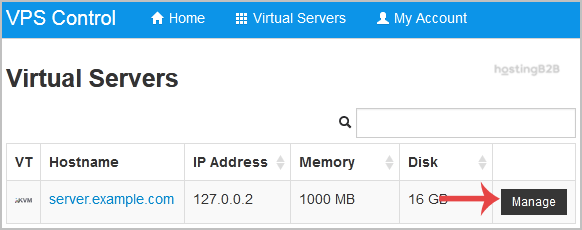
First, you need to login to SolusVM Control Panel using the credentials provided to you. This is the central management area for your VPS server. - Select the Correct VPS
If you manage multiple servers, a list will be displayed. Carefully select the specific VPS you need to access from the list to proceed.
- Locate the VNC Control Option
On the main management page for your selected VPS, scroll down until you find the VNC section. Click on the VNC button to open the connection settings. - Choose Your VNC Client
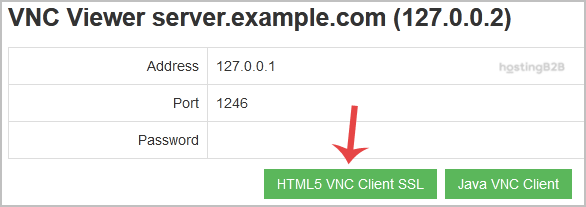
You will be presented with two options. We strongly advise choosing HTML5 VNC Client SSL (Recommended) for a secure, browser-based connection that requires no extra software. Alternatively, you can use the Java VNC Client if needed. - Launch the VNC Session
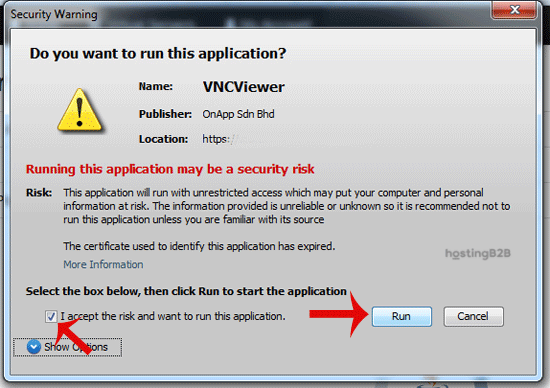
If you selected the HTML5 option, the VNC console will open directly in a new browser tab. If you chose the Java client, your browser may ask for confirmation to launch the application. Accept any security prompts from trusted sources to run the client and open the console window. You now have direct console access to your machine.

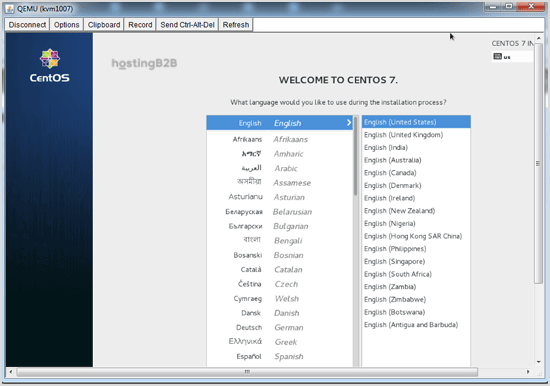
The VNC Area will resemble the following screenshot:
For users who manage servers on different platforms, the process to access your VPS via VNC in Virtualizor follows a similar principle but with a different interface.
Troubleshooting Common VNC Connection Issues
Occasionally, you might encounter an issue when trying to launch the Java VNC client. If you see a “Java Blocked” error, it means your local Java security settings are preventing the application from running. To resolve this, you must add the SolusVM control panel domain to the Exception Site List within your Java Control Panel’s Security tab. Also, ensure you have the latest version of Java installed on your computer.
Frequently Asked Questions
VNC stands for Virtual Network Computing. It is a graphical desktop sharing system that provides remote control of another computer. For a VPS, it offers out-of-band console access, meaning you can manage the server even if its operating system’s network is down or misconfigured.
The HTML5 client is generally recommended because it runs directly in your web browser without requiring plugins or external software like Java. This makes it more secure and convenient for most users. The Java client is a reliable alternative if the HTML5 version is not working for some reason.
Using VNC is the perfect solution for this problem. Since VNC access is handled through the SolusVM control panel and not the VPS’s public network interface, you can log in via VNC to modify the firewall rules and unblock your IP address.
Yes, VNC is an essential tool for OS installation and reinstallation. It allows you to interact with the installation media and setup prompts just as you would with a physical screen and keyboard attached to the server.
SSH (Secure Shell) provides a command-line (text-based) interface to your server over the network. VNC provides a graphical (desktop) interface. While SSH is ideal for most day-to-day administration, VNC is critical for troubleshooting boot-up problems, network failures, or interacting with graphical installers.
For robust server solutions, explore our high-performance VPS hosting plans designed for reliability and control.