You can check your VPS specification like RAM, disk space, virtualization, IP Address, etc., from the SolusVM Control Panel. SolusVM is included with all our VPS hosting plans.
1. Login to your SolusVM Control Panel.
2. If you have multiple VPS, select the appropriate one.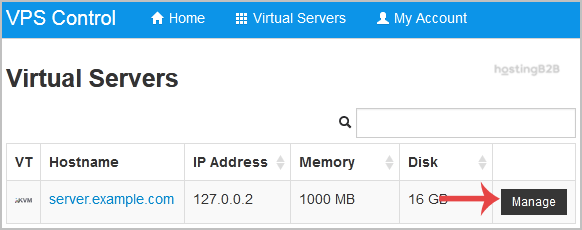

3. Under your VPS hostname, you can see VPS specifications like the IP address of the VPS, the operating system’s disk size, the amount of available RAM, the hostname, the Virtualization details such as KVM, Xen, OpenVZ, etc.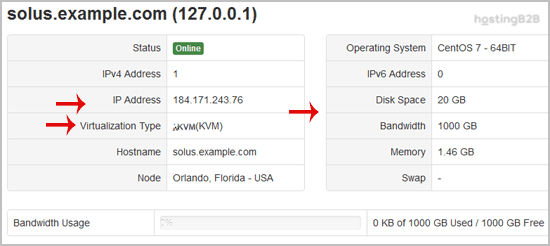
If you need more resources than your current plan provides, you can easily upgrade. For high-performance workloads, consider our dedicated servers.