
Managing your email inbox effectively is essential for productivity and security. Unsolicited large emails with oversized attachments can quickly consume your storage space and even pose a security risk. This guide provides a straightforward method to block emails by size using the built-in spam filter options in your DirectAdmin control panel.
How to Set an Email Size Limit in DirectAdmin
Follow these simple steps to configure a filter that automatically rejects incoming emails exceeding a specific size. This process helps you maintain a clean inbox and optimize your server resources.
- Log in to your DirectAdmin account with your user credentials.
- Navigate to the E-mail Manager section. Locate and click on the SPAM Filters icon. You can also type “SPAM Filters” into the navigation search box to find the option quickly.

- Inside the SPAM Filters menu, find the Block By section. From the dropdown menu, select the Size option. This tells DirectAdmin you want to create a rule based on message size.
- In the Value field that appears, you must define the maximum allowed email size. First, select the unit of measurement either Kilobytes (KB) or Megabytes (MB). Then, enter the numerical value for your limit. For example, entering ‘5’ and selecting ‘MB’ will set a 5 Megabyte limit.
- Click the Block button to save and activate your new filter. DirectAdmin will now automatically block any incoming messages that are larger than the size you specified.

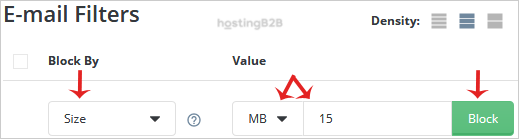
With this filter active, you have successfully configured your DirectAdmin spam settings to reject oversized emails, giving you greater control over your inbox. For more advanced filtering, consider exploring options to enable Apache SpamAssassin for better filtering.

Managing Your Email Filters and Limits
Once a filter is active, it is important to know how to manage it. All your active spam filter rules will be listed in the SPAM Filters section. From there, you can select any rule and delete it if it is no longer needed. Proper management of your email settings is a key part of maintaining your digital infrastructure. This includes not only receiving limits but also understanding how to change email sending limits in DirectAdmin to prevent abuse.
Effectively managing email is a cornerstone of professional communication. For businesses requiring robust and dependable communication channels, exploring a dedicated Secure Business Email Hosting solution can provide advanced features, enhanced security, and expert support.
Frequently Asked Questions
When DirectAdmin blocks an email due to its size, the message is typically rejected at the server level. This means it is not delivered to your inbox or spam folder. In most server configurations, the sender will receive a bounce-back message notifying them that their email was too large and could not be delivered.
The SPAM Filters in DirectAdmin are typically applied at the user account level. This means the size limit you set will apply to all email addresses under that specific DirectAdmin user. You cannot set unique size limits for individual email mailboxes through this interface.
A common and reasonable limit is between 10 MB and 25 MB. This is large enough to allow for standard documents, presentations, and image attachments but small enough to block excessively large files like high-resolution videos, which are better shared through dedicated file-sharing services.
To remove a filter, return to the SPAM Filters section in DirectAdmin. You will see a list of your current filters. Select the checkbox next to the size filter rule you wish to remove and then click the ‘Delete’ button.
No, the SPAM Filters feature in DirectAdmin is designed to screen incoming emails only. It does not affect the size of emails you are sending from your account. Outgoing email limits are configured separately by the server administrator.









