
Unwanted emails can disrupt your workflow and introduce security risks. DirectAdmin provides a simple yet powerful tool to block incoming messages based on specific keywords or phrases. This guide walks you through using the Stop Word filter to regain control over your inbox, including how to set it up and manage your list of blocked terms for optimal performance.
What Is the Stop Word Filter
The Stop Word filter in DirectAdmin is a feature within its SPAM Filters tool that allows you to block any incoming email that contains a specific word or phrase in its body. This is an effective method for preventing common spam or messages with undesirable content. By creating a custom list of “stop words” you can build a personalized defense against junk mail tailored to your needs.
How to Block Emails by Keyword
Follow these steps to configure the filter and start blocking emails containing specific words. This process gives you direct control over your DirectAdmin email filtering rules.

- Log in to your DirectAdmin account. If you need help, you can learn how to access your email account from DirectAdmin in our related guide.

- Navigate to the E-mail Manager section. Click on the SPAM Filters icon. You can also type “SPAM Filters” into the navigation filter box to find the option quickly.
- Under the “Block By” heading, click the drop-down menu and select the Stop Word option.
- In the Value text field, type the specific word or phrase you wish to block.
- Click the Block button to save the filter. The system will now scan incoming emails for this term.

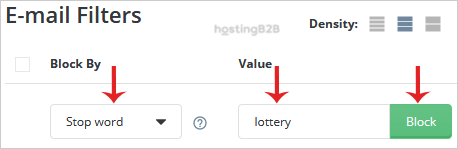
Important Note To prevent the filter from blocking emails that contain your keyword as part of a larger word, it is best to add a space before and after it. For example, using ” win ” will block emails about a “free win” but will not block an email that contains the word “window”.
How to Manage Your Blocked Words
After you add one or more stop words, they will appear in a list on the same SPAM Filters page. Managing this list is straightforward. To remove a filter, simply find the word in your list and click the corresponding “Delete” button next to it. Regularly reviewing this list ensures your filters remain relevant and do not accidentally block important correspondence. For more details on managing filters, see our guide on how to remove email spam filters from DirectAdmin.
Best Practices for Email Filtering
While the Stop Word filter is excellent for blocking known unwanted terms, a comprehensive anti-spam strategy often requires multiple layers of protection. For more advanced and automated spam detection, you should Enable Apache SpamAssassin in DirectAdmin. This service uses a wide range of heuristic tests to identify and score potential spam. For businesses that require maximum security, uptime, and dedicated support, consider upgrading to a professional Secure Business Email Hosting solution that offloads spam management entirely.
Frequently Asked Questions
Yes you can. Simply enter the entire phrase you want to block into the Value field. The filter will block any email containing that exact sequence of words.
In DirectAdmin’s stop word filter for spam (usually the custom stop_words file used by SpamAssassin/Exim integration), matching is typically done with exact case.
Emails blocked by the SPAM Filters in DirectAdmin are typically discarded and will not appear in your inbox or spam folder. They are rejected at the server level.
You can add multiple stop words to create a comprehensive block list. Each word should be added as a separate entry by repeating the process.
Yes. For more robust spam protection, we recommend enabling Apache SpamAssassin. It uses advanced algorithms to detect spam more effectively than simple keyword blocking.









