
Optimizing your Virtual Private Server starts with the right foundation. One key configuration within the SolusVM control panel is selecting the disk driver. This choice between Virtio and IDE can significantly impact your server’s disk I O performance. This guide provides the exact steps to make this change safely and effectively. However, it is critical to perform this action before you install or reinstall an operating system to prevent boot errors.
Why Choose the Right Disk Driver
Understanding the difference between Virtio and IDE helps you make an informed decision for your specific needs. Each driver offers distinct advantages that affect how your virtual machine interacts with the storage hardware. Making the right choice is a fundamental step in managing high-performance VPS hosting solutions.
- Virtio This is a paravirtualized driver designed for performance in virtual environments. It provides a more direct and efficient communication path between the guest operating system and the host’s hardware. For most modern operating systems, Virtio delivers superior disk speed and lower overhead making it the recommended choice for performance-sensitive applications.
- IDE This driver emulates a standard IDE hardware device. Its primary benefit is compatibility. Older or more obscure operating systems that lack Virtio support can use the IDE driver to function correctly. You might choose IDE for legacy applications or specific custom OS installations where Virtio drivers are not available.
A Critical Prerequisite Before You Begin
You must change the disk driver before installing or reinstalling the operating system on your VPS. Attempting to switch the driver on a server with an existing OS will almost certainly lead to a critical failure. The operating system will be unable to find its boot disk upon startup resulting in a “disk not found” error and preventing the server from loading. Always set your desired driver on a fresh VPS or immediately after initiating a reinstallation from your control panel.

How to Change Your Disk Driver in SolusVM
Follow these four steps carefully to configure the disk driver for your server. This process is straightforward and takes only a few moments inside the SolusVM management area.
- Access Your Control Panel
First Login to your SolusVM Control Panel using the credentials provided by your hosting provider. - Select the Appropriate VPS
If you manage multiple virtual servers, a list will be displayed after you log in. Ensure you select the correct VPS that you intend to configure. Double-checking here can prevent accidental changes to the wrong machine.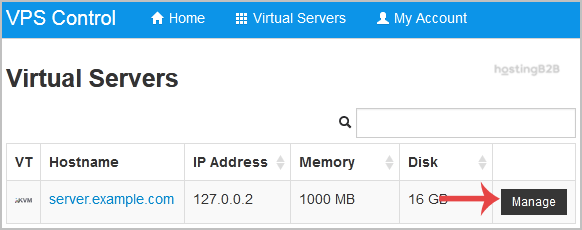
- Change the Disk Driver Setting
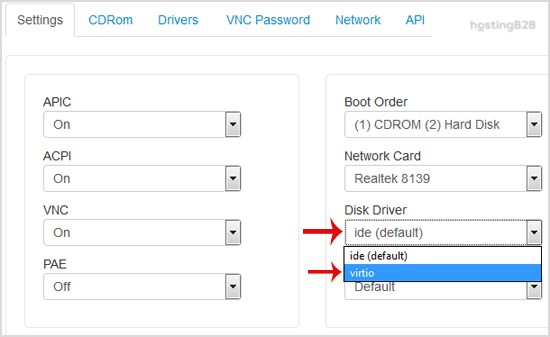
On the main management page for your VPS scroll down to the Settings tab. Locate the Disk Driver option. Click the drop-down menu and select your desired driver either Virtio or IDE.
- Reboot and Install Your OS
For the change to take effect you must reboot your VPS. After the reboot you can proceed to manually install an OS using SolusVM. The new installation will use the disk driver you just selected.
Frequently Asked Questions
A disk driver is a piece of software that allows the operating system of your virtual server to communicate with the virtual disk hardware presented by the host system. The choice of driver affects performance and compatibility.
For most modern operating systems like recent versions of Linux and Windows Virtio is significantly better due to its higher performance and lower overhead. IDE should only be used for older or specialized operating systems that do not have Virtio driver support.
Changing the disk driver after the OS is installed will cause the system to fail on boot. The OS will not be able to locate its storage device resulting in an error such as “disk not found”. This change must be made before the OS installation.
Yes you can switch back from Virtio to IDE using the same process in the SolusVM control panel. However the same rule applies you must make the change before reinstalling the operating system.
The disk driver itself does not directly affect how backups are created by the host system. However the performance benefits of Virtio can potentially lead to faster I O operations during certain types of backup and restore processes.









