
Change the password of a WordPress account
If you are logged in, into your WordPress admin account, you can easily change your password. Strong passwords are essential for any site hosted on our WordPress hosting or web hosting plans.
1. Login to your WordPress admin dashboard.
Keep your WordPress site safe and secure.

Gain access to tools and support to manage your site with confidence.
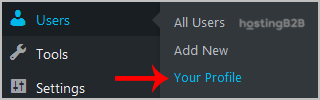
Web Hosting2. Under the dashboard menu, hover your mouse over Users and then click on Your Profile.
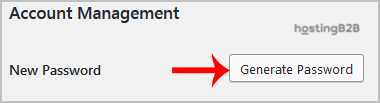
3. Scroll down, and under Account Management, you can see the New Password option. Click on the Generate Password button.
4. Copy the password to a safe place and then click on Update Profile to change your password.
Round-the-Clock Support
Our certified experts are always available to resolve issues, ensure compliance, and maintain performance. For more information, contact our experts!
Read more about WordPress from our Knowledgebase Blog Articles
- Install a new theme in WordPress
- First Blog in WordPress
- Remove sample comments on a new WordPress blog
- Install WordPress via Softaculous
Now that you’ve secured your account, it’s a good idea to clean up your website. See our guide on How to Remove Multiple Posts with a Single Click in WordPress. We also recommend installing an SSL certificate to encrypt all traffic to your WordPress site.








