
A healthy database is essential for a fast and reliable website. Over time, databases can become inefficient, leading to slower page loads and potential errors. This guide provides a clear, step-by-step process to safely perform database maintenance, helping you examine and optimize your database directly within the DirectAdmin control panel.
Understanding Database Maintenance
Before proceeding, it is important to understand the two main actions you can perform. The ‘Check’ function is a diagnostic tool that scans your database tables for errors or corruption. The ‘Optimize’ function is an active maintenance task that reorganizes table data and index files to reduce storage space and improve I/O efficiency. Regularly optimizing your database can significantly improve website performance by cleaning up what is known as table overhead.
How to Examine and Optimize a Database
Follow these steps carefully to maintain your database. We strongly recommend creating a backup before making any changes to your database to prevent accidental data loss. Your data integrity is paramount.

- Important to Create a Backup First
Before you begin, safeguard your data by creating a full backup of your DirectAdmin account. For businesses requiring robust data protection, consider a solution for integrated backup and disaster recovery. - Log in to your DirectAdmin Account
Start by logging into your DirectAdmin control panel using your credentials.
- Navigate to MySQL Management
Once logged in, locate the Account Manager section. Click the MySQL Management icon. You can also type “MySQL Management” into the navigation filter box to find the option quickly. - Select the Database for Maintenance
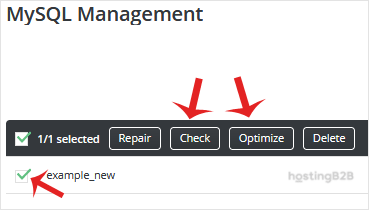
Under the “Database” heading, you will see a list of your available databases. Select the checkbox next to the database or databases you wish to work on. You can select multiple databases at once to perform a bulk action. - Choose Your Action Check or Optimize
With your database selected, click the “Check” button to examine it for errors. To improve its performance, click the “Optimize” button. DirectAdmin will then process your request.

Interpreting the Results
After you click either button, DirectAdmin will display a results table. A successful operation will typically show a status of “OK” for each table. If the check reports errors or corruption, your next step should be to attempt a repair. You can learn more about this process in our guide on how to repair a database in DirectAdmin. Understanding these outcomes is key to maintaining a healthy server environment and preventing future issues. For a deeper understanding of database protection, review these common security risks and solutions for your databases.
Frequently Asked Questions
The frequency depends on your website’s traffic and how often its data changes. For most websites, running an optimization once a month is a good practice. High-traffic sites may benefit from weekly optimizations.
While the optimization process itself is generally safe, there is always a small risk when performing any database operation. This is why creating a complete backup before you start is a non-negotiable first step.
Table overhead is extra space allocated to a database table that is no longer in use. It occurs after many data insertion, update, and deletion operations. The ‘Optimize’ function reclaims this wasted space, making the database smaller and faster.
Database optimization can fix performance issues caused by an inefficient database, which is a common cause of a slow website. However, slow performance can also result from other factors like unoptimized code, large images, or insufficient server resources. For consistently high performance, you may need to consider upgrading your infrastructure, such as moving to dedicated server hosting.
Optimizing is a maintenance task for a healthy database to improve its efficiency. Repairing is a recovery action used only when a database check has found corruption or specific errors within the tables.









