It’s time for Backup and you don’t want all your Files and Folders to be backup? Let’s read how to exclude specific Files/Folders from the Plesk backup.
1. Log in to your Plesk account.
2. Go to Websites & Domains > Backup Manager.

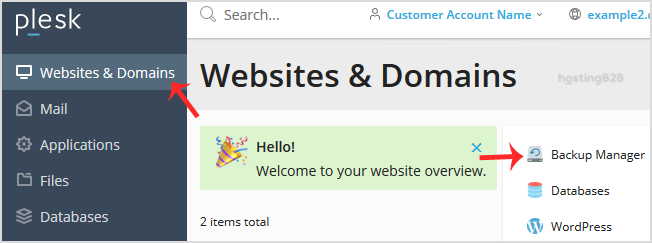
3. Under Backup Manager, click on Back Up.
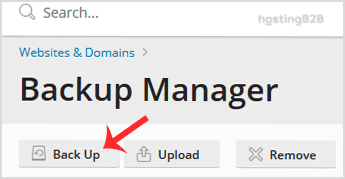
4. Choose the backup type.
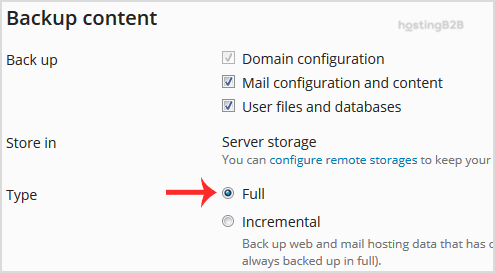
5. Tick mark Exclude specific Files/Folders from the Plesk Backup.
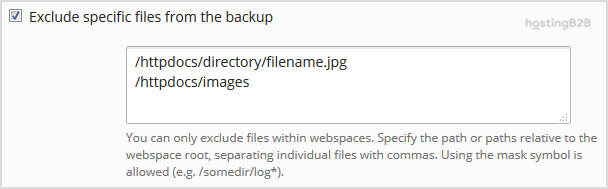
Enter the path of the file you wish to exclude, such as:
/httpdocs/directory/filename.jpg
To exclude a whole directory, enter:
/httpdocs/images
To exclude only specific extensions such as PNG, enter:
/httpdocs/images/*.png
6. Click Ok, and the backup will start generating in the background. At this point, you can navigate away from the page.
The post Plesk Backup – How to exclude specific Files/Folders appeared first on HostingB2B.
Related Posts
-
 Best Mail Servers for Windows: Top Picks for 2026 April 17, 2026
 -
 Understanding Dedicated Web Hosting: Is It Right for You? September 13, 2024




Related How To
-
 How to Become a HostingB2B Affiliate December 7, 2022
 -
Check or change server time via WHM root June 9, 2021



Related Posts
-
Best Mail Servers for Windows: Top Picks for 2026 April 17, 2026
Related How To
-
How to Become a HostingB2B Affiliate December 7, 2022
-
Check or change server time via WHM root June 9, 2021
-
How to Change Your WHM Root Password June 9, 2021