
Managing your web applications should be straightforward and efficient. Softaculous is a powerful tool integrated into the SiteWorx control panel that automates the installation of web applications like WordPress, Joomla, and Magento with just a few clicks. This guide provides the exact steps to locate and open the Softaculous interface, empowering you to deploy software quickly without manual configuration.
Understanding the Softaculous App Installer
Before proceeding, it is helpful to understand what Softaculous does. It is a leading auto-installer for control panels like SiteWorx. It allows you to install, update, and manage a massive library of over 400 scripts and applications directly from your hosting account. Using Softaculous saves valuable time and eliminates the technical challenges often associated with manual software installation, making it an essential feature for developers and business owners alike.
Guide to Accessing Softaculous in SiteWorx
Follow these simple instructions to find and launch the application installer from your SiteWorx dashboard. The process is direct and takes less than a minute to complete.

- Log Into Your SiteWorx Account
First, you must sign into your SiteWorx control panel. You can typically do this by navigating to your domain name followed by port 2443, for example, www.example.com:2443/siteworx/. Enter your username and password to proceed. - Locate the Hosting Features Menu
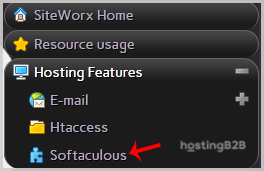
Once you are logged in, look for the main menu on the left side of the screen. Find and click on the Hosting Features section to expand it if it is not already open. This area contains key tools for managing your website. - Click the Softaculous Option
Within the Hosting Features menu, you will see an icon and link labeled Softaculous. Click this option to launch the application installer.
- Explore the Softaculous Interface
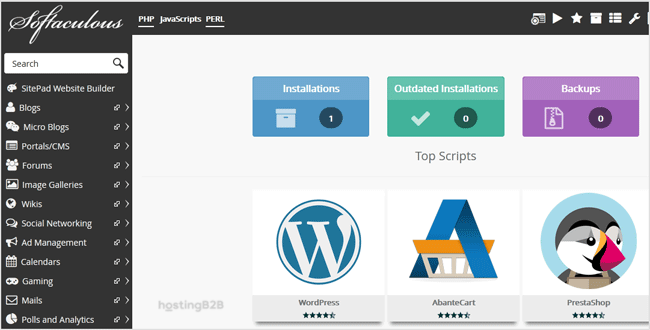
After clicking the link, SiteWorx will redirect you to the main Softaculous dashboard in a new tab or window. Here you can browse application categories, search for specific software, and manage your existing installations. - Return to the SiteWorx Control Panel
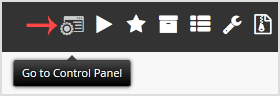
When you have finished using Softaculous, you can easily return to your main control panel. Simply look for the “Go to Control Panel” icon, usually located in the top-right corner of the Softaculous interface, and click it.
Your Next Steps in the Softaculous Interface
Now that you have accessed the Softaculous dashboard, you can begin installing applications. Use the search bar to find a specific app like WordPress or browse the categories on the left to discover new tools. The installation process is guided and requires you to fill out a few simple forms to configure your new website or application. For more detailed tutorials, you can explore more expert guides on our blog.
Frequently Asked Questions
Softaculous is an application auto-installer that simplifies the process of deploying web software. It allows you to install hundreds of popular scripts, content management systems, and other tools like WordPress or Magento with a single click, directly from your SiteWorx control panel.
Softaculous is a standard feature included with our hosting plans that use the SiteWorx control panel. It is designed to provide our clients with a fast and reliable way to manage their web applications.
Yes, WordPress is one of the most popular applications available for installation through Softaculous. You can install the latest version of WordPress in just a few minutes by selecting it from the dashboard and following the on-screen instructions.
If the Softaculous icon is not visible under the Hosting Features menu, it may be related to your specific hosting package permissions. Please contact our support team for assistance, and they can verify your account configuration.
Softaculous also simplifies application updates. From the Softaculous dashboard, you can view all your current installations. If an update is available for an application, you will see a notification and an option to perform an automated upgrade.









