
Adding a secondary domain in SiteWorx allows you to efficiently host multiple websites under a single account. This process is straightforward but requires one crucial prerequisite to ensure your new domain works correctly. This guide provides the exact steps for your SiteWorx secondary domain setup from start to finish.
Essential Prerequisites Before You Start
Before you add a new domain to your SiteWorx account, you must update its nameserver records. You need to point your new secondary domain name to the same name servers used by your primary domain. This action tells the global internet where to find your website’s content.
After you update the nameservers, you must wait for a process called domain propagation. This is the time it takes for Internet Service Providers worldwide to update their records with your new information. Propagation typically takes between 12 and 24 hours but can sometimes be faster.

How to Add a Secondary Domain A Step-by-Step Guide
Once domain propagation is complete, you can proceed with adding the domain in your control panel. Follow these five steps carefully to configure the domain in your account.
- Log into Your SiteWorx Account
Navigate to your SiteWorx login page which typically looks like www.example.com:2443/siteworx/. Enter your username and password to access the dashboard. If you have trouble logging in you may need to reset your credentials. - Navigate to Hosting Features
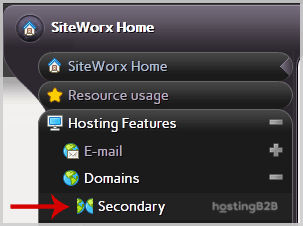
From the main dashboard look for the main menu on the left side of the screen. Click on the Hosting Features menu item to expand its options if it is not already open. - Access the Domain Management Section
Within the Hosting Features menu find and click the Domain menu item. From the submenu that appears select the Secondary option to open the secondary domain management page.
- Enter Your Domain Name
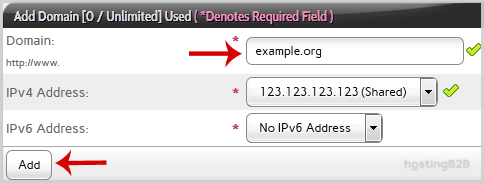
You will now see the “Add a Secondary Domain” interface. In the text field labeled Domain carefully type the domain name you wish to add. Ensure you do not include prefixes like www or http. - Add the Domain
After entering the domain name click the Add button. The system will process your request and configure the necessary settings on the server.
If the process is successful you will see a confirmation message on your screen. Your secondary domain is now officially added to your SiteWorx account and ready for content.
After Setup Next Steps for Your New Domain
Adding the domain is just the first step. Now you need to associate it with website content. The most common next step is to upload your website’s files. You can easily upload files to your new secondary domain using the built-in File Manager in SiteWorx. This allows you to manage your site’s content directly through your web browser.
Troubleshooting Common Setup Issues
Sometimes you might encounter issues after adding a secondary domain. The most common problem is the domain not resolving correctly which is often due to incomplete DNS propagation. If more than 24 hours have passed, check your nameserver settings again for any typos. If the domain resolves but shows an error you may need to check file permissions or the directory structure for the new domain.
Frequently Asked Questions
A secondary domain also known as an add-on domain is a fully functional domain that you can host on your existing SiteWorx account. It appears as a completely separate website to visitors and allows you to manage multiple web properties from a single control panel.
Domain name server propagation typically takes between 12 and 24 hours. During this time DNS servers across the globe update their records to reflect your new settings. It is essential to wait for propagation to complete before adding the domain to SiteWorx to avoid resolution issues.
Yes. A secondary domain is intended to host a completely separate website with its own unique content. It will have its own directory for files within your hosting account allowing you to build and manage a distinct online presence.
A secondary domain is a unique domain name like example.com. A subdomain is a prefix added to your existing domain like blog.example.com. If you want to build a separate brand or site you need a secondary domain. If you want to organize content for an existing site you can create a subdomain in SiteWorx.
If you no longer need a secondary domain you can remove it through the SiteWorx control panel. The process is similar to adding one and involves navigating to the same Secondary Domain section in the Hosting Features menu where you will find an option to delete it.









