
Unwanted emails from a single persistent domain can disrupt your workflow and clutter your inbox. If you are receiving spam from various random users at the same domain, a targeted block is your most effective solution. This guide provides clear instructions on how to block spam domains in DirectAdmin, giving you precise control over your email security and helping you maintain a cleaner, more productive inbox.
When to Block a Domain vs an Email Address
Understanding when to use a domain-level block is key to effective email management. This method is ideal when a spammer constantly changes the username part of their email address but keeps the same domain. Instead of blocking dozens of individual addresses, you can stop all communication from the source with one action. However, if you only need to stop messages from a single sender, it is better to block individual email addresses to avoid unintentionally blocking legitimate correspondence.
How to Block a Spam Domain Step by Step
Follow these five simple steps to add a domain to your block list using the DirectAdmin spam filters. This process gives you direct control over your email blacklist and helps you reduce unwanted emails from known spam sources.

- Log in to your DirectAdmin Account
Begin by securely logging into your DirectAdmin control panel with your user credentials. This is the central hub for managing your hosting services. - Navigate to SPAM Filters
Once logged in, locate the E-mail Manager section. Click on the SPAM Filters icon. If you cannot see it immediately, you can type “SPAM Filters” into the navigation filter box to find the option quickly. For more help navigating this area, review our guide on how to access your DirectAdmin E-mail Manager section.
- Choose to Block by Domain
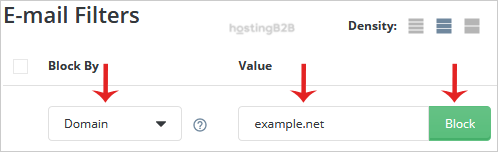
Inside the SPAM Filters interface, find the section labeled Block By. From the dropdown menu, select the Domain option. This tells the system you intend to block all emails originating from a specific domain name. - Enter the Domain Name
In the text field labeled Value, carefully type the domain name you wish to block. It is important to enter only the domain itself, such as example.com, without any prefixes like http or www. - Confirm the Block
After entering the domain, click the Block button to save your changes. DirectAdmin will now reject any incoming emails from that domain. You can repeat this process to block additional domains as needed.

Managing Your DirectAdmin Block List
Your email security needs may change over time. It is good practice to periodically review your block list to ensure it remains accurate. Within the same SPAM Filters screen, you can view all currently blocked domains and email addresses. If you block a domain by mistake or no longer need the filter, you can select it from the list and remove it. This ensures you never miss important emails. You can find more detailed instructions in our guide on how to remove email spam filters.
Alternative Spam Filtering Options
While direct domain blocking is highly effective for known threats, DirectAdmin offers other powerful tools. For more advanced and automated protection, you can enable Apache SpamAssassin. This utility uses a sophisticated scoring system to identify and filter a wider range of spam. For comprehensive protection, consider our secure email hosting solutions which provide multi-layered security for your business communications.
Frequently Asked Questions
Blocking an email address stops messages from one specific sender, like [email protected]. Blocking a domain stops all messages from every possible address at that domain, such as [email protected]. Domain blocking is more powerful for fighting spammers who use multiple addresses.
To unblock a domain, return to the SPAM Filters section in DirectAdmin. You will see a list of all your current blocks. Select the domain you wish to remove from the list and click the Delete or Unblock button.
The DirectAdmin interface requires you to block domains one at a time. To block several domains, you must repeat the process of selecting “Domain”, entering the value, and clicking “Block” for each one.
No, the spam filter settings in DirectAdmin only control incoming emails. Blocking a domain will not prevent you or your users from sending emails to that domain.
If spam continues, first double-check that you entered the domain name correctly in the filter settings. Spammers may also use multiple, similar-looking domains. For persistent issues, consider enabling more advanced tools like SpamAssassin or exploring a managed email security service.









