
Keeping your hosting control panel secure is essential for protecting your website and data. Regularly updating your Plesk account password is a fundamental security practice that prevents unauthorized access. This guide provides a direct, step-by-step process to help you change your Plesk password quickly and efficiently.
Step-by-Step Plesk Password Change Guide
Follow these five simple steps to update your Plesk login credentials. This process assumes you have your current password and can successfully log in. If you cannot log in, please see the troubleshooting section below.
- Log in to your Plesk account
First, access your Plesk control panel using your unique login URL. This typically follows the format of your domain name with port 8443, for example, https://example.com:8443. If you are unsure of your login address, our guide on How to login to Plesk can help.
- Navigate to the Account section
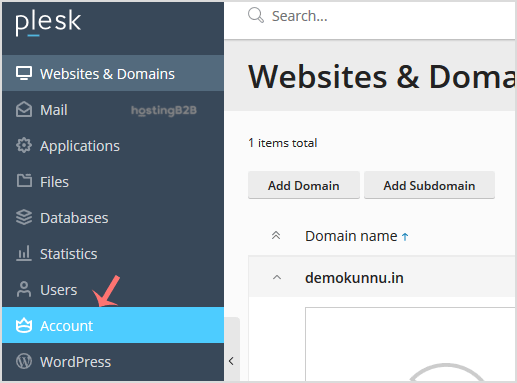
Once you are logged in, locate the main navigation menu on the left side of the screen. Click on the “Account” option to proceed to your account management area. - Access your profile
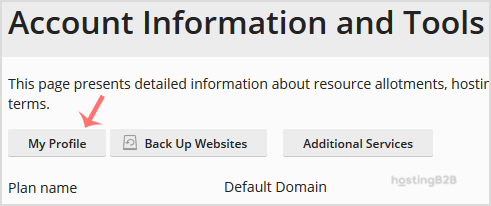
Inside the Account section, you will find a group of options labeled “Account Information and Tools”. From this list, click on “My Profile” to open your personal settings page. - Enter or generate a new password
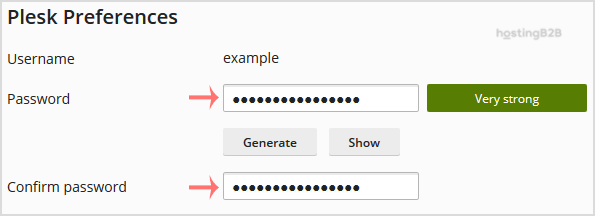
On the My Profile page, locate the password field. You have two options. You can either type a new, strong password directly into the field or use the “Generate” button to create a secure, randomized password for you. We recommend using the generator for maximum security. - Apply the changes
After entering or generating your new password, scroll to the bottom of the page and click the “Apply” button to save the update. Your password is now changed. You will need to use this new password for your next Plesk login.
Plesk Password Security Best Practices
A strong password is your first line of defense. To maximize your Web Hosting account security, always follow these guidelines when creating a new password for your Plesk panel or any other sensitive service.

- Use a combination of characters Include uppercase letters, lowercase letters, numbers, and symbols to increase complexity.
- Aim for length A longer password is generally stronger. Aim for a minimum of 12 characters, with 16 or more being ideal.
- Avoid personal information Do not use easily guessable details like your name, birthdate, or company name.
- Ensure uniqueness Never reuse passwords across different services. If one account is compromised, others remain safe.
- Consider a password manager Using a password manager helps you generate and store unique, complex passwords for all your accounts securely.
- Enable two-factor authentication For an even higher level of protection, we strongly recommend you enhance account security with Two-factor Authentication whenever it is available.
Troubleshooting Plesk Login Issues
Sometimes you might run into issues with your password. If you have forgotten your current password and cannot log in to follow the steps above, you will need to perform a password reset instead of a change.
Our dedicated guide explains how to reset your Plesk password, which typically involves using a link sent to your registered email address. This ensures that only the verified account owner can regain access. Managing resources on your powerful VPS Hosting solution requires strict access control, making this recovery process a critical security feature.
Frequently Asked Questions
For optimal security, it is good practice to change your Plesk password every 90 days. You should also change it immediately if you suspect your account may have been compromised.
Plesk allows administrators to set password strength policies. Generally, a strong password should be at least 8-12 characters long and include a mix of uppercase letters, lowercase letters, numbers, and special symbols.
If you have forgotten your password, you cannot use the change procedure. You must use the “Forgot your password?” link on the Plesk login screen to initiate the reset process.
No, for security reasons, Plesk does not display your current password in the user interface. You can only overwrite it with a new one.
While changing your password is a critical step, comprehensive security involves multiple layers. We highly recommend enabling two-factor authentication (2FA) for your Plesk account to add an extra barrier against unauthorized access.









