
A simple guide to help you create a database in DirectAdmin. MySQL databases are essential for running CMS platforms, forums, and web applications on our web hosting plans.
1. First log in to your DirectAdmin Account.
2. Then in the Account Manager section, click on the MySQL Management Icon or type MySQL Management in the navigation filter box, and then the option will appear. Click on it.

3. After that on the top right-hand side, click on the Create New Database button.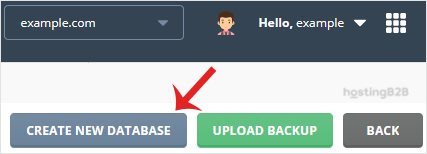
4. Finally fill the database name in the text field and then enter the password in the Database Password field or click on the Generate password icon and then on Create Database.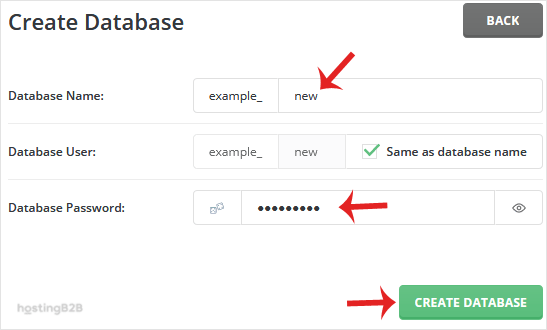
Your database will be created, and you can copy its details such as database user/password and database name.
You have successfully created a database in DirectAdmin. After creating your database, you may also need to create additional database users with specific permissions. For database optimization tips, see our guide on examining and optimizing databases in DirectAdmin. For high-traffic applications that need dedicated database resources, consider our VPS hosting or dedicated server plans.








