
Creating dedicated database users is a critical step in securing your web applications. By assigning specific users with limited permissions, you prevent a single compromised account from affecting your entire data infrastructure. This guide provides a straightforward process for Plesk database user management, helping you enhance security and control access effectively.
Step-by-Step Guide to Creating a Plesk Database User
Follow these simple instructions to add a new database user within your Plesk control panel. This process ensures your applications have the necessary credentials without granting excessive permissions.
- Access Your Control Panel
Log in to your Plesk account. This is typically done via a URL like https//example.com:8443. - Navigate to the Databases Section
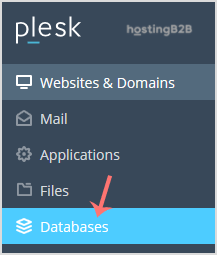
In the main sidebar menu on the left, locate and click on Databases.
- Open User Management
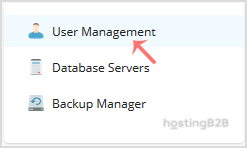
On the Databases screen, find the User Management tab or button in the right sidebar and click it to proceed. - Add a New Database User
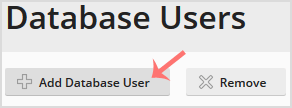
You will now see a list of existing database users. Click the Add Database User button to open the creation form. - Configure User Details and Permissions
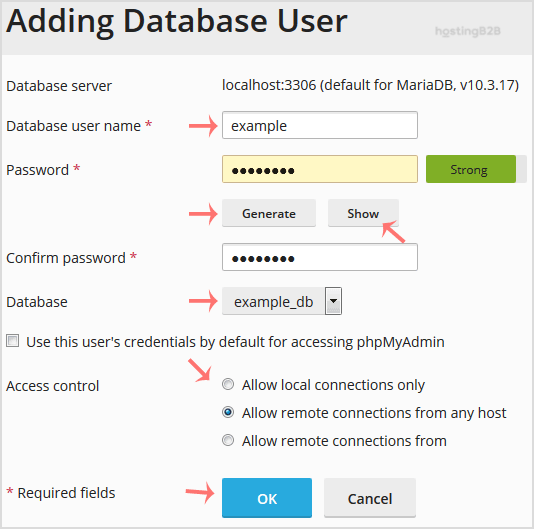
Complete the required fields to define the new user and its access rights.- Database user name Enter a unique and descriptive username. For example, you might use a name related to the application like ‘blog_user’.
- Password Create a strong password or use the Generate button for a secure, random one. Always click Show and copy the password to a secure location before saving.
- Database From the dropdown menu, select the database this user will access. If you have not created one yet, you must first create a database in Plesk.
- Access Control This setting is vital for security. Choose Allow local connections only if your application is running on the same server as the database. This is the most secure option. Only select the remote access option if you must connect from an external host, and be sure to specify the IP address to limit exposure. Following database security best practices is essential.
- Confirm the Creation
After filling in all the details, click the OK button to save the new user. You have now successfully created a new database username in Plesk.
Verifying Your New Database User
After creating the user, it is a good practice to verify that the credentials work as expected. You can test the new username and password by updating your application’s configuration file, such as wp-config.php for WordPress, with the new details. If the application connects and functions correctly, your setup is complete. This simple check ensures there are no typos and prevents potential downtime.

Frequently Asked Questions
Creating a separate user for each application follows the principle of least privilege, a core security concept. If an application’s credentials are compromised, the damage is contained only to the database it had access to, rather than exposing all your data.
Local access means the application connecting to the database is on the same server, often referred to as ‘localhost’. Remote access allows connections from other servers over a network. For security, you should always default to local access unless a remote connection is absolutely necessary.
While Plesk allows you to grant a single user access to multiple databases, it is generally better for security to create a unique user for each application and its corresponding database. You can manage a user’s access to different databases from the User Management screen.
To change a password, navigate back to Databases and then User Management. Click on the username you wish to update, and you will see an option to enter and confirm a new password.
If you delete a database user, any application using those credentials will immediately lose access to the database. This will cause the application to fail and likely result in your website or service going offline. Before deleting a user, ensure it is no longer in use. You can learn how to remove a database username in Plesk safely in our related guide.









