
Keeping your Outlook 2019 inbox clean is essential for productivity and managing your account’s storage space. Deleting unnecessary emails helps you stay organized and prevents your mail server from reaching its capacity. This guide provides step-by-step instructions to remove single messages, delete emails in bulk, and permanently clear your deleted items folder.
Understanding POP vs IMAP Deletion Behavior
Before you remove messages, it is important to understand how your email account is configured. The deletion behavior in Outlook 2019 depends entirely on whether you use a POP or IMAP account. This setting determines if an email is removed only from your computer or from the mail server as well.
- POP (Post Office Protocol) downloads emails to your computer and typically removes them from the server. When you delete a message in Outlook with a POP account, it is only removed from your local Outlook client. The message may still exist on the mail server, consuming storage space.
- IMAP (Internet Message Access Protocol) synchronizes your email client with the mail server. Any action you take in Outlook—including deleting a message—is mirrored on the server. If you delete an email from an IMAP account, it is removed from both Outlook and the server simultaneously.
Knowing your account type is critical for effective storage management. If you are unsure, you can review your configuration or check our guide to set up a cPanel email account with Outlook 2019.

How to Delete a Single Email Message
For quick cleanup, removing individual emails is a straightforward process. This is the most common method for getting rid of spam or messages you have already addressed. Follow these simple steps to delete one message from your inbox or any other folder.
- Open your Outlook 2019 application.

- Navigate to your Inbox or the folder containing the message you wish to remove.
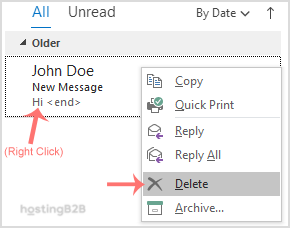
- Right-click on the specific email message you want to delete.
- From the context menu that appears, select the Delete option.
The message will immediately move to your ‘Deleted Items’ folder. You have now successfully deleted an email in Outlook 2019.
How to Delete Multiple Emails at Once
To organize your Outlook inbox more efficiently, you often need to remove several messages at the same time. Outlook provides simple keyboard shortcuts to select and delete emails in bulk, saving you valuable time. This is perfect for clearing out old conversations or promotional emails.
Deleting Several Non-Consecutive Emails
Use this method when the emails you want to remove are not listed next to each other.
- Hold down the Ctrl key on your keyboard.
- While holding Ctrl, click on each individual email you want to select.
- Once all desired emails are highlighted, right-click on any of the selected messages and choose Delete.
Deleting a Block of Consecutive Emails
This method is ideal for deleting a continuous range of messages in your list.
- Click on the first email in the sequence you want to delete.
- Hold down the Shift key on your keyboard.
- While holding Shift, click on the last email in the sequence. All messages between the first and last will be selected.
- Right-click on the highlighted block of messages and choose Delete.
Managing the Deleted Items Folder
When you delete an email, it is not permanently gone. Instead, it moves to the ‘Deleted Items’ folder. This acts as a safety net, but these messages still occupy storage space on your mail server if you use an IMAP account. To truly free up storage, you must empty this folder.
Manually Emptying the Deleted Items Folder
- In the folder pane on the left side of Outlook, find your ‘Deleted Items’ folder.
- Right-click on the ‘Deleted Items’ folder.
- Select Empty Folder from the menu.
- A confirmation prompt will appear. Click Yes to permanently delete all items in the folder.
Effectively managing your email storage is a key benefit of a professional email hosting provider. If you consistently face storage limits, consider upgrading to a plan with more capacity, such as our secure and reliable email hosting solutions.
Frequently Asked Questions
Once the ‘Deleted Items’ folder is emptied, the messages are permanently deleted and generally cannot be recovered through Outlook. Some email systems may have a secondary recovery period, but you should consider this action final.
If you use an IMAP account, yes. IMAP synchronizes actions across all devices. Deleting an email on your computer’s Outlook will also remove it from your phone’s mail app. If you use POP, the deletion will likely only happen on the device where you performed the action.
You can configure Outlook to automatically empty the ‘Deleted Items’ folder every time you exit the program. Go to File > Options > Advanced. Under the ‘Outlook start and exit’ section, check the box for ‘Empty Deleted Items folders when exiting Outlook’.
This issue usually points to a synchronization problem with an IMAP account or a corrupted Outlook profile. Ensure you have a stable internet connection and try repairing your Outlook data file. If the problem persists, you may need to re-create your email profile.
Yes. You can select any email message by clicking on it once and then simply pressing the ‘Delete’ key on your keyboard. This is the quickest way to move a single message to the ‘Deleted Items’ folder.









