Generating a Certificate Signing Request or CSR is the essential first step to securing your website with an SSL certificate. This request contains encrypted information that a Certificate Authority uses to verify your identity and create your unique SSL certificate. This guide provides a clear, step-by-step process to help you generate a CSR directly within your cPanel account, ensuring you have everything needed to protect your site and your users.
What is a Certificate Signing Request
A Certificate Signing Request is a block of encoded text containing details about your domain and organization. When you generate a CSR, a corresponding private key is also created on your server. The CSR is sent to a Certificate Authority like Sectigo or DigiCert, but the private key must remain secret and secure on your server. The authority uses the CSR to build your SSL certificate, which you can then install to enable HTTPS encryption. This process is fundamental to protect your customers’ data with SSL.
Ready to secure your website with SSL?

Start by generating your Certificate Signing Request (CSR) in just a few clicks!
Web HostingHow to Generate a CSR in cPanel Step-by-Step
Follow these instructions carefully to create the CSR needed for your SSL certificate. The cPanel interface makes this process straightforward, but ensuring each detail is accurate is vital for a successful certificate issuance.
- Log Into Your cPanel Account
Begin by logging into your cPanel dashboard using the credentials provided for your reliable Web Hosting services. - Navigate to the SSL TLS Manager
In the main cPanel dashboard, locate the “Security” section. Click on the “SSL/TLS” icon to open the management tools.
- Open the CSR Generation Tool
Inside the SSL/TLS manager, find the link under “Certificate Signing Requests (CSR)” that reads “Generate, view, or delete SSL certificate signing requests.” Click this link to proceed.
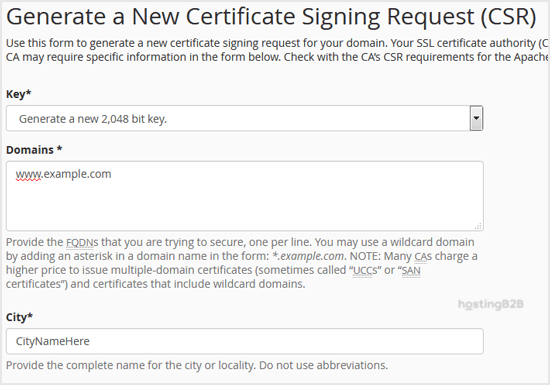
- Complete the CSR Information Form
You will now see a form requesting specific details. Fill out each field accurately to ensure your SSL certificate is valid. This information will be embedded in your certificate.- Domains Enter the fully qualified domain name you want to secure, such as www.example.com. Including “www” will typically secure both the www and non-www versions.
- City Enter the full name of the city where your organization is located.
- State Provide the full name of the state or province.
- Country Select your country from the dropdown menu.
- Company Enter the legally registered name of your organization. You may leave this blank for certain types of certificates.
- Company Division Specify a department, such as “IT” or “Web Security”. This field is often optional.
- Email Provide a valid email address, preferably one associated with the domain.
- Passphrase Create a secure passphrase. It can be up to 20 characters long but should not contain special characters. Remember this passphrase, as it may be needed later.

- Generate and Save Your CSR Code
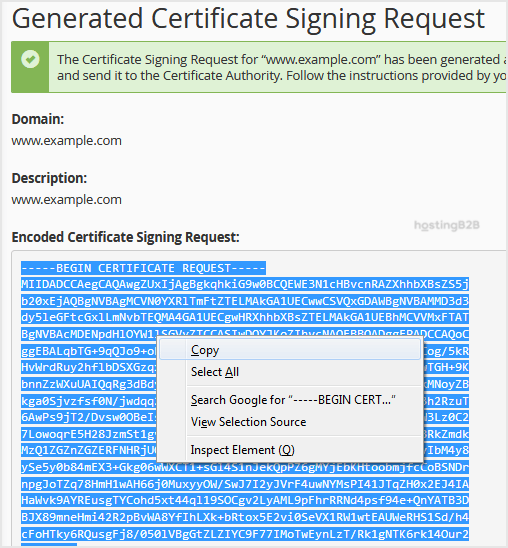
After filling out all the fields, click the “Generate” button. cPanel will process the information and display your new CSR code. Copy the entire block of text, including the “BEGIN” and “END” lines, and save it in a plain text file. You will need this CSR code when you purchase your SSL Certificates.


Next Steps After Generating Your CSR
With your CSR code saved, you are ready to complete the SSL process. Your next step is to provide this code to your chosen Certificate Authority when you order your certificate. Once the authority validates your information and issues the certificate, you will install it on your server. If you need to find your CSR again later, you can follow our guide to Retrieve a Certificate Signing Request from cPanel.
Round-the-Clock Support
Our certified experts are always available to resolve issues, ensure compliance, and maintain performance. For more information, contact our experts!
Frequently Asked Questions
The private key is a separate cryptographic key created on your server at the same time as the CSR. It is mathematically linked to your CSR and the final SSL certificate. You must keep the private key secure and secret on your server, as it is used to decrypt information sent to your website.
No, you should generate a new, unique CSR for every SSL certificate you intend to purchase or renew. Reusing a CSR is not a secure practice and is generally not supported by Certificate Authorities.
The passphrase is an optional layer of security for your private key. If you set one and forget it, you may have trouble installing the SSL certificate. In most cases, the simplest solution is to generate a new CSR and private key pair with a new passphrase.
Yes, the process still requires a CSR even for self-signed certificates. However, self-signed certificates are not trusted by browsers and are only suitable for internal testing or development environments, not for public websites.
Generating a CSR manually is required for purchasing commercial SSL certificates, such as Organization Validated (OV) or Extended Validation (EV) certificates. In contrast, automated solutions like cPanel’s AutoSSL typically handle the entire process for basic Domain Validated (DV) certificates without requiring manual CSR generation. You can learn more about automated AutoSSL solutions in our related guide.