

A guide to help you import a database in cPanel via phpMyAdmin. Database import is essential when migrating websites to a new web hosting account.
1. Log into your cPanel account.
2. In the Databases section, click on the phpMyAdmin icon.


3. In left side-bar, Click on the expand button to expand the database like “example”.
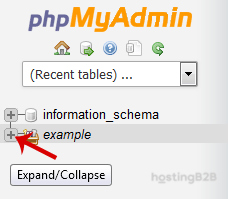
4. Under your cPanel username, you can see a list of all databases. Select an appropriate database in which you want to import SQL.
5. Click on the Import button.

6. Under File to Import click on the Browse button, Select SQL file from your PC.
7. Scroll down and then click on the Go button. If it shows a message in green box then it means your SQL is successfully uploaded.
You have successfully imported a database via phpMyAdmin in cPanel. If you need to create a new database first, see our database creation guide. To export a database for backup, follow our export guide. For large database migrations requiring hands-on assistance, our managed services team can help.








