

Installing a new Content Management System can seem complex, but using the right tools makes the process straightforward. This guide provides a clear, step-by-step walkthrough to help you install the Composr CMS on your hosting account using the powerful Softaculous application installer, a standard feature in cPanel.
Getting Started with Composr Installation
Before you begin the installation, ensure you have access to your hosting control panel. The entire process takes place within cPanel and requires no command-line knowledge or manual file uploads. You will simply navigate the graphical interface to get your new Composr website online quickly and efficiently.
Step-by-Step Installation Guide
Follow these instructions carefully to locate and configure Composr within the Softaculous panel. Each step is designed to be clear and easy to follow, ensuring a smooth setup experience from start to finish.

- Log into your cPanel account. If you have trouble with your cPanel account login, you can reset your password or contact the support team.
- Navigate to the Software section and click on the Softaculous Apps Installer icon.

- You will be redirected to the main Softaculous dashboard.
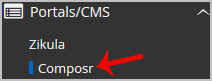
- In the navigation menu on the left, find and expand the Portals CMS category. Click the Composr link that appears in the list.
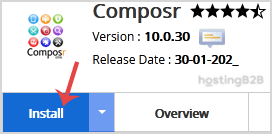
- On the Composr overview page, click the prominent Install Now button to begin the setup process.
- Under the Software Setup section, you must configure the installation URL.
- Choose Protocol Select https if your site has an SSL certificate, which is highly recommended.
- Choose Domain Select the domain where you want to install Composr.
- In Directory To install Composr on your main domain (e.g. example.com), leave this field empty. To install it in a subfolder (e.g. example.com blog), enter the directory name here.
- Next, move to the Site Settings field.
- Site Name Enter the name for your new website. You can change this later.


- In the Admin Account section, create your administrator credentials. This is a critical step for security.
- Admin Username Choose a unique username. For security, avoid common names like “admin” or “administrator”.
- Admin Password Create a strong, unique password. Use a mix of uppercase letters, lowercase letters, numbers, and symbols.
- Admin Email Enter a valid email address. This will be used for notifications and password resets.

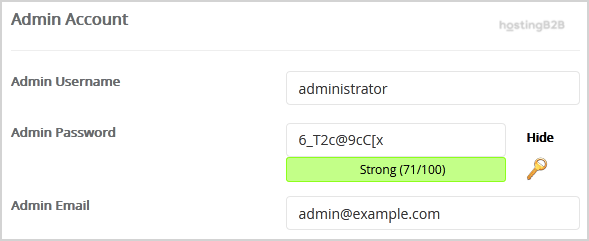
Note: Be sure to save your admin username and password in a secure location. You will need them to access your Composr website’s administration panel.
Finalizing Your Setup
With the main configuration complete, you only need to review the advanced settings and start the installation. These final steps will create the database and copy the necessary files to your server.
- Review the Advanced Options section. You can typically leave these settings at their default values. Changing the database name is not usually necessary, and while automated backups are useful, be mindful that frequent backups can consume significant disk space. For more details on server configurations, you can explore our guides on Advanced Options.
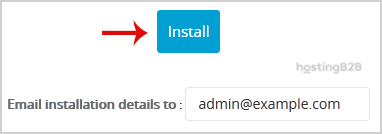
- Scroll to the bottom of the page and click the final Install button.

Softaculous will now run the installation process. Once it is complete, you will see a success message with links to your new Composr website and its admin login page. Congratulations, you have successfully installed Composr via Softaculous in cPanel. Now is a great time to learn how to secure your new Composr installation to protect your data. For demanding websites, consider our optimized cPanel VPS plans for enhanced performance.
Frequently Asked Questions
Composr is a powerful and flexible open-source Content Management System (CMS). It includes a wide range of features out of the box, such as social networking, galleries, and interactive elements, making it suitable for building highly dynamic and community-driven websites.
Using the Softaculous installer, the entire process is very fast. After you fill in the configuration details and click install, the automated setup typically completes in under a minute.
Yes. During the setup process in step 6, you can specify a directory name in the “In Directory” field. This will install Composr in a subfolder of your domain, such as yourdomain.com blog.
If you forget your password, you can use the “Forgot Password” feature on the Composr admin login page. A password reset link will be sent to the administrator email address you configured during installation.
Softaculous is a standard feature included with our cPanel Web Hosting plans, providing a one-click installer for hundreds of popular applications, including Composr, WordPress, and more.









