
Launching a new website with Fork CMS is a straightforward process when you use the Softaculous installer inside cPanel. This tool automates the entire setup, allowing you to bypass manual file uploads and database configuration. This guide provides a clear, step-by-step walkthrough to get your Fork CMS site online quickly and securely, ensuring a smooth start on a reliable web hosting solution.
Prerequisites for Installing Fork CMS
Before you begin the cPanel Fork CMS setup, ensure you have the necessary credentials and access. You will only need your cPanel username and password provided by your hosting provider. No advanced technical knowledge is required, as the Softaculous installer handles all the complex tasks for you.
Step-by-Step Fork CMS Installation Guide
Follow these instructions carefully to deploy your new Fork CMS website. Each step is designed to be simple and guide you through the process without any confusion.

- Log into Your cPanel Account
First, access your hosting control panel by navigating to your cPanel URL and entering your login details. - Locate the Softaculous App Installer
Once logged in, scroll to the Software section. Click the Softaculous Apps Installer icon to open the auto-installer panel.
- Find Fork CMS
In the Softaculous panel, look at the navigation menu on the left side. Expand the Portals/CMS category and click on the Fork link that appears in the list.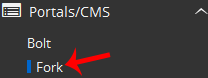
- Initiate the Installation
You will now see an overview of Fork CMS. Click the prominent Install button to proceed to the configuration screen.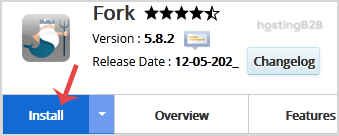
- Configure the Installation URL
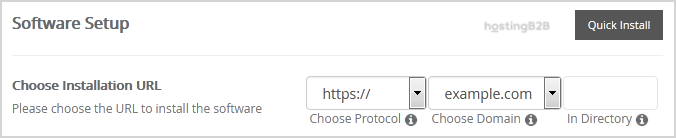
Under the Software Setup heading, you must define where Fork CMS will be installed.- Choose Protocol Select https:// to ensure your site is secure from the start.
- Choose Domain Select the domain name you want to use for this installation.
- In Directory This field is important. To install Fork on your main domain (e.g., example.com), leave this field empty. To install it in a subfolder (e.g., example.com/blog), enter the directory name here.
- Set Up Your Administrator Account
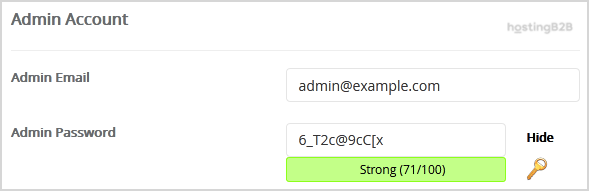
Next, under the Admin Account section, create your login credentials. Strong Fork CMS admin account security starts here.- Admin Username Choose a unique username. For security, avoid common names like “admin” or “administrator”.
- Admin Password Create a strong, complex password containing letters, numbers, and symbols. Use the password generator if available.

Note: Be sure to copy these credentials to a secure location. You will need them to access your Fork CMS dashboard after installation.
- Review Advanced Options and Install
The Advanced Options section allows you to customize the database name and configure automated backups. For most users, the default settings are sufficient. Be mindful that frequent backups can consume significant disk space. When you are ready, scroll to the bottom of the page and click the final Install button.
Softaculous will now run the installation process, which typically takes less than a minute. Once complete, you will see a success message with links to your new website and the admin login page.
After the Installation Next Steps
Congratulations, you have successfully completed the Fork CMS installation. Your next steps should include logging into your admin dashboard to familiarize yourself with the interface. From there, you can start choosing themes, installing modules, and adding your content. Understanding the fundamentals of your control panel is also beneficial, and you can learn more about how to choose the best control panel for your needs.
Why Use Softaculous for Your CMS Setup
Using the Softaculous App Installer simplifies website creation immensely. It automates script installation, manages database creation, and sets file permissions correctly, saving you time and preventing common setup errors. While it handles the database automatically, learning how to manually create a database in cPanel can provide valuable technical insight.
Frequently Asked Questions
Fork is an open-source content management system designed to be user-friendly and intuitive. It provides powerful tools for developers and a straightforward interface for content editors, making it a great choice for building and managing websites.
No, you do not need any special technical skills. Softaculous is designed as a one-click installer that automates the entire setup process. If you can navigate a simple web interface and fill out a form, you can install applications like Fork CMS.
Yes. During the installation process described in step 5, you can specify a directory name in the “In Directory” field. This will install Fork CMS in a subfolder of your main domain, such as yourdomain.com/fork.
If you forget your password, Fork CMS provides a “Forgot your password?” link on its admin login page. You can use this feature to reset your password via the email address associated with your admin account. If that fails, password recovery options are often available through your hosting control panel’s database management tools.
Softaculous is a standard feature included with our cPanel-based web hosting plans. It provides access to over 400 applications, giving you the flexibility to install blogs, forums, e-commerce stores, and more with just a few clicks.









