

Installing a new Content Management System can seem complex, but using the right tools simplifies the process significantly. This guide provides a complete walkthrough to install the Zikula CMS using the Softaculous apps installer directly within your cPanel account. Follow these clear steps to get your Zikula website up and running quickly and securely.
Prerequisites for Zikula Installation
Before you begin the Zikula installation guide, ensure you have everything you need for a smooth setup. Proper preparation prevents common issues and helps you complete the process without interruption. You will need an active hosting plan and a domain name ready for your new website.
- cPanel Access You must have the login credentials for your cPanel account. This is the control panel where you will find the Softaculous installer. All of our reliable web hosting services include cPanel access.
- Domain Name You need a registered domain or subdomain that is correctly pointed to your hosting account’s nameservers. This will be the web address for your Zikula installation.
Step-by-Step Zikula Installation Guide
This Zikula installation guide breaks down the entire process into simple, manageable actions. By following these instructions in order, you can confidently set up the CMS and configure its most important initial settings, from the installation directory to the administrator account.

- Log into cPanel
Start by logging into your cPanel account using the username and password provided by your hosting provider. - Find the Softaculous Apps Installer
Once logged in, look for the “Software” section on the cPanel dashboard. Click on the Softaculous App Installer icon to proceed.
- Navigate to the Softaculous Panel
cPanel will automatically redirect you to the main Softaculous dashboard, where you can manage hundreds of applications. - Locate and Select Zikula
On the left-hand menu, find the “Portals CMS” category and expand it. Click on the “Zikula” link that appears in the list. Alternatively, you can use the search bar at the top to find Zikula directly.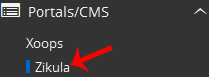
- Initiate the Installation
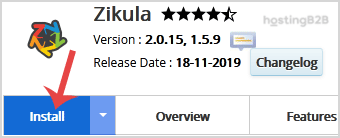
On the Zikula overview page, click the “Install” button to open the setup screen.
- Configure the Software Setup Fields
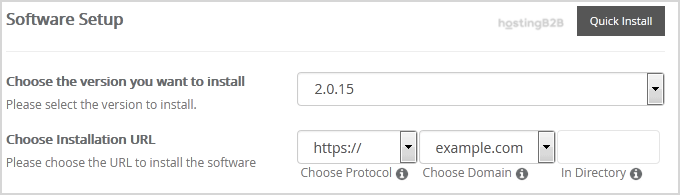
This section is critical for defining where and how Zikula is installed.- Choose Version You can typically leave this set to the latest available version for the best security and features.
- Choose Installation URL Select the correct protocol and domain. We strongly recommend choosing HTTPS for security. In the “In Directory” field, decide if you want Zikula on your main domain (e.g., example.com) or in a subfolder (e.g., example.com/site). To install on the main domain, leave this field empty. Otherwise, enter a directory name.

- Set Up the Administrator Account
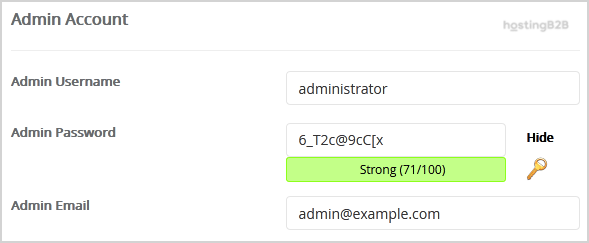
Here you will create the primary login for managing your Zikula website. Pay close attention to these details for security.- Admin Username Create a unique username. For security, never use default names like “admin” or “administrator” as these are common targets for automated attacks.
- Admin Password Use a strong, unique password containing a mix of letters, numbers, and symbols. A robust password is your first line of defense. For comprehensive protection, consider our Web Application Security (WAF) solutions.
- Admin Email Enter a valid email address. This will be used for password resets and important notifications.
Please Note: Be sure to copy your new admin username and password and store them in a secure location, like a password manager. You will need them to access your Zikula dashboard.
- Review Advanced Options
You can generally leave these settings at their default values. This section allows you to customize the database name or configure automated backups. While frequent backups are recommended, be aware they can consume significant disk space over time. - Complete the Installation
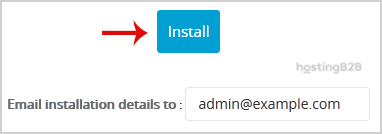
Finally, scroll to the bottom of the page and click the “Install” button. Softaculous will now automate the installation process, which typically takes only a few moments.
Verifying Your Zikula Installation
After Softaculous confirms the installation is complete, it is important to verify that your new website is working correctly. This final check ensures you can log in and that the site is accessible to visitors. It is also the perfect time to perform your first backup to safeguard your new setup.
- Visit Your New Website Open a new browser tab and navigate to the installation URL you chose in step 6. You should see the default Zikula homepage.
- Test Your Admin Login Access your admin login page, typically by adding a specific path like ‘index.php?module=Users&type=user&func=login’ to your URL. Use the admin credentials you created to log in. Successful access confirms your site is ready.
- Create Your First Backup Now that your site is installed, it is a best practice to generate a full cPanel backup. This creates a secure restore point before you start adding content or making changes.
With a successful installation, your site may grow quickly. If you find your project requires more resources, consider upgrading to our scalable VPS hosting for enhanced performance and control.
Frequently Asked Questions
Zikula is a free, open-source Content Management System (CMS) and application framework. It is designed to be flexible and scalable, making it suitable for building a wide range of websites, from simple blogs and personal sites to more complex community portals and web applications.
Yes, you can easily install Zikula on a subdomain. During the “Choose Installation URL” step in the Softaculous installer, simply select your desired subdomain (e.g., blog.example.com) from the dropdown menu instead of your primary domain.
If the installation fails, Softaculous usually provides an error message that can help diagnose the issue. Common causes include incorrect directory permissions or database connection problems. You can review the settings and try again, or contact our support team for assistance.
Softaculous simplifies updates. When a new version of Zikula is available, you will typically see a notification in your Softaculous dashboard within cPanel. You can then use the one-click update feature to upgrade your installation safely.
Yes, Zikula can be installed manually. This involves downloading the files from the official Zikula website, uploading them to your server via FTP, creating a database, and running the installation script. However, using Softaculous is much faster and less prone to error for most users.









