
Effectively managing your email is crucial for productivity and security. Unwanted messages can clog your inbox while important communications get lost. cPanel’s user-level email filters give you precise control over how incoming mail is handled for a specific email account. This guide provides a clear step-by-step process for editing your existing email filters, helping you refine your rules and keep your inbox organized.
Why Edit Your Email Filters?
Before detailing the steps, it is helpful to understand why you might need to update your email filter rules. Over time, your needs change. You might need to block a new type of spam, automatically forward messages from a key client to a colleague, or organize project-related emails into a specific folder. Regularly managing your cPanel email filters ensures they remain effective, saving you time and safeguarding your inbox.
How to Edit an Existing User-Level Email Filter in cPanel
Follow these steps to locate and modify a specific email filter associated with one of your email accounts. This process allows you to adjust the criteria and actions for any filter you have previously created.

- Log into your cPanel account. This is the main dashboard for managing your hosting services.
- Navigate to the Email Section. Find the “Email” group of tools and click on the Email Filters icon.

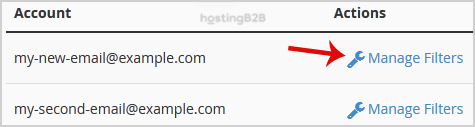
- Select the Email Account. Under the “Filters by Users” heading, you will see a list of all email accounts you have created. Locate the account you wish to modify and click the Manage Filters link next to it.
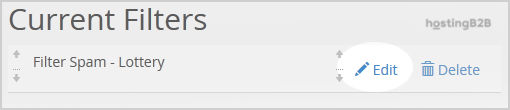
- Choose the Filter to Edit. The next screen displays all “Current Filters” for the selected account. Find the specific filter you want to change and click the Edit link next to its name.
- Modify the Filter Rules and Actions. This is where you will make your desired changes. You can update the conditions that trigger the filter and the actions that are performed when a message matches. We cover these options in detail in the next section.
- Save Your Changes. After you have finished editing the filter, click the Save button to apply your new settings.

Congratulations, you have successfully updated a user-level email filter in your cPanel account.
Understanding Filter Rules and Actions
The power of cPanel email filters lies in their flexible rules and actions. When you edit a filter in Step 5, you can customize its behavior with precision. This is where you can update email filter rules in cPanel to match your current needs.
Defining Filter Conditions
Conditions determine which emails the filter will act upon. You can create highly specific rules by combining multiple conditions. Common options include matching text in the following parts of a message.
- From Matches the sender’s email address.
- Subject Matches words or phrases in the subject line.
- To Matches the recipient’s address.
- Body Matches content within the email’s main text.
- Spam Score Uses the SpamAssassin score to filter potential junk mail.
For example, a rule could be Subject contains “Invoice”.
Choosing Filter Actions
Actions define what happens to an email when it meets your specified conditions. You have several powerful cPanel email forwarding options and management tools available.
- Discard Message Deletes the incoming email permanently with no notification. Use this with caution.
- Redirect to Email Forwards the message to another email address.
- Deliver to Folder Moves the email to a specific folder within the email account.
- Pipe to a Program A more advanced option that sends the email message to a script on your server.
By combining these conditions and actions, you can create a robust system for managing your email flow automatically. For more helpful guides, please visit our company blog.
Frequently Asked Questions
User-level filters apply only to a specific email address that you choose. Global email filters apply to all email accounts on your entire cPanel account, making them useful for account-wide rules.
Yes, you can create and manage multiple filters for each email account. cPanel processes them in the order they are listed. You can reorder your filters on the “Manage Filters” page.
The easiest way to test a filter is to send an email from a different address that matches the conditions you set. For example, if your filter blocks a subject line, send an email with that exact subject and see if the action occurs.
cPanel processes filters sequentially from top to bottom as they appear in your filter list. The first rule that an incoming message matches will be applied. The processing stops after that first match.
While filters can redirect mail, cPanel has a dedicated “Autoresponders” feature for sending automatic replies. It is generally better to use that tool for out-of-office messages or automated confirmations.









