
Managing your WordPress site’s structure is essential for user experience and search engine optimization. A key part of this is knowing how to safely remove a category that is no longer needed. Deleting categories can help you clean up your content organization and improve site navigation, but it is important to understand the consequences first. This guide provides a clear, step-by-step process for deleting WordPress categories without disrupting your content.
What Happens to Posts When You Delete a Category
Before you proceed with deleting a WordPress category, you must understand what happens to the posts assigned to it. WordPress is designed to ensure no content becomes orphaned. When you remove a category, any posts that were exclusively in that category are automatically reassigned to your site’s default post category, which is typically named ‘Uncategorized’. While this prevents content from disappearing, it can lead to a disorganized collection of posts that harms user navigation and your site’s perceived authority.
How to Reassign Posts to a New Category
To maintain a clean site structure, it is best practice to reassign posts to a more appropriate category before you delete the old one. You can do this efficiently using the bulk edit feature in WordPress. This ensures your content remains well-organized and easy for visitors to find.

- Navigate to Posts and then All Posts from your WordPress dashboard.
- Use the category filter dropdown to select the category you plan to delete and click Filter. This will display all posts assigned to that category.
- Select all posts by checking the box at the top of the list.
- From the Bulk Actions dropdown menu, choose Edit and click Apply.
- In the bulk edit interface that appears, find the Categories section. Select the new category you want to assign these posts to.
- Click the Update button to save your changes. All selected posts are now reassigned.
For more advanced content management tasks, such as when you need to bulk remove posts, WordPress provides powerful built-in tools.
How to Remove a Category in WordPress Step by Step
Once you have reassigned any associated posts, you can confidently proceed with the category deletion. The process is straightforward and takes only a few moments from within your WordPress admin dashboard. Follow these simple steps to permanently remove a category.
- Login to Your WordPress Dashboard
Access your WordPress site’s administrative area by logging in with your username and password. - Navigate to the Categories Screen
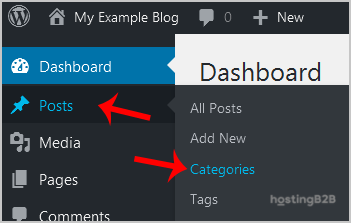
In the left-hand dashboard menu, hover your mouse over the Posts option. A submenu will appear. Click on Categories to open the category management page.
- Delete the Desired Category
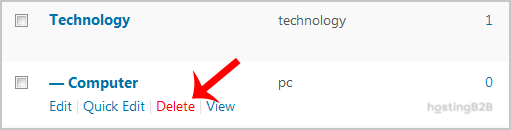
On the right side of the screen, you will see a list of all your existing categories. Locate the category you wish to remove. Hover your mouse over its name, and a set of options will appear beneath it. Click the red Delete link. A confirmation prompt will appear to ensure you did not click it by accident. Click OK to permanently delete the category.
Managing the Default ‘Uncategorized’ Category
Every WordPress installation has a default category. While you cannot delete this category directly, you can rename it to something more meaningful. You can also assign a different existing category as the new default. To do this, go to Settings and then Writing in your dashboard. You will find an option called Default Post Category where you can select any of your existing categories from a dropdown menu. Properly setting up your categories is a foundational step when you categorize your new blog posts for better organization.
For site owners who find themselves performing these administrative tasks frequently, it may be time to consider upgrading your infrastructure. Our scalable VPS hosting provides the performance and control needed for growing websites. For those who prefer to focus on content, our Managed IT Services can handle these technical details for you.
Frequently Asked Questions
If you accidentally delete a category, the posts within it are not deleted. They are automatically reassigned to your default post category, which is usually ‘Uncategorized’. You can then create the category again and bulk-edit the posts to reassign them.
No, you cannot delete the default ‘Uncategorized’ category. However, you can rename it to something more useful by navigating to Posts and then Categories. You can also set a different category as the default under Settings and then Writing.
The default WordPress interface does not support deleting multiple categories at once. You must delete them one by one. For advanced bulk actions, you may need to install a WordPress plugin designed for taxonomy management.
Yes, it can. Category archive pages are often indexed by search engines. If you delete a category, that URL will result in a 404 error. It is good practice to set up a 301 redirect from the old category URL to a new relevant category or your main blog page to preserve SEO value.
WordPress does not have a “trash” feature for categories, so deletion is permanent. The only way to restore a deleted category is to recreate it manually or restore your website from a backup that was taken before the category was deleted.









