
Managing access to your website’s files is a critical part of maintaining security. If you have old or unused FTP accounts, it is important to remove them promptly to prevent unauthorized access. This guide provides clear steps on how to remove an FTP user account in Plesk, helping you strengthen your site’s security and keep your user list organized.
Why Removing Unused FTP Accounts Is a Security Priority
Every active FTP account represents a potential entry point to your server. Accounts that are no longer in use, such as those for former employees or temporary contractors, can become significant security vulnerabilities if their credentials are ever compromised. Proactively managing FTP accounts is a fundamental aspect of secure file management. By regularly removing unnecessary users, you effectively revoke FTP access that is no longer required, minimizing your attack surface and protecting your valuable data.
Prerequisites for Deleting an FTP User
Before you begin the FTP user removal steps, you must have administrative access to your Plesk control panel. Ensure you have the correct credentials to proceed. If you are unsure how to access your control panel, you can follow our guide to log in to your Plesk account.

Step-by-Step Guide to Remove an FTP User in Plesk
Follow these five simple steps to permanently delete an FTP account from your domain within the Plesk interface. This process is straightforward and ensures that access is revoked immediately.
- Log in to your Plesk account
Enter your username and password to access the main Plesk dashboard. - Navigate to Websites & Domains
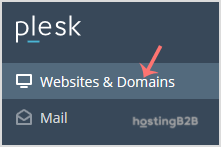
In the main sidebar menu on the left, find and click on the Websites & Domains option to view a list of all your managed domains.
- Select the Correct Domain
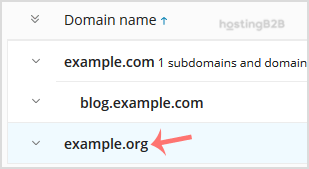
Locate the domain name for which you want to manage FTP access and click on it to open its specific control panel. - Open FTP Access Settings
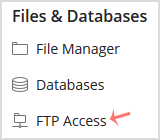
Within the domain’s dashboard, look for the Files & Databases section. Click on the FTP Access icon to see all FTP accounts associated with that domain. - Select and Remove the FTP Account
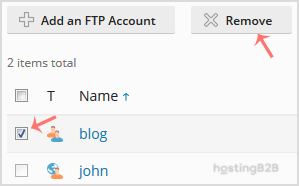
In the list of FTP accounts, check the box next to the user account you wish to delete. Once selected, click the Remove button. Plesk will ask for confirmation before permanently deleting the account.
Verification and Next Steps for Secure File Management
After completing the removal process, the user list will refresh, and the deleted account should no longer be visible. This confirms that the user has been successfully removed. To maintain a high level of security, consider implementing a regular audit of your FTP users. For comprehensive protection, explore our solutions for robust web application security to safeguard your site against a wide range of threats. Additionally, ensure your data is always safe with an integrated backup and cyber protection plan. If you need to grant access again in the future, you can easily create a new FTP user account in Plesk.
Frequently Asked Questions
Deleting an FTP user account in Plesk only removes the access credentials. The files and directories that the user had access to are not deleted from the server. They will remain in their respective locations within your domain’s file structure.
No, you cannot restore a deleted FTP account. Once an account is removed, it is gone permanently. You must create a new FTP account with the same username and a new password if you need to grant access again.
Plesk allows you to disable an FTP account instead of deleting it. This can be a useful option for temporarily suspending access without permanently removing the user’s configuration. You can find the ‘Disable’ option in the same FTP Access management screen.
Removing accounts for former employees or contractors is a critical security measure. It prevents any possibility of unauthorized access to your website files after their departure, protecting your business from potential data breaches or malicious activity.
We recommend reviewing your list of active FTP accounts on a quarterly basis, or whenever a team member with file access leaves your organization. Regular audits help ensure that only authorized individuals have access to your server, which is a key part of crucial cyber security measures.









