
If you find that important emails are being incorrectly marked as spam, you may need to adjust your email settings. Removing a spam filter in DirectAdmin is a straightforward process that can help ensure you receive all incoming messages. However, this action requires careful consideration due to potential security implications. This guide provides the exact steps to delete email filters and offers advice on managing your email effectively afterward.
Before You Begin Understanding the Risks
Before you remove any DirectAdmin spam filters, it is important to understand the consequences. Spam filters are a critical security layer that protects your inbox from unsolicited mail, phishing attempts, and malicious attachments. Disabling or deleting these filters will likely cause a significant increase in the amount of junk mail you receive. This not only clutters your inbox but also elevates the risk of accidentally opening a harmful message. Always consider adjusting a filter or whitelisting a sender before choosing complete removal.
Step-by-Step Guide to Delete Email Filters
Follow these instructions to permanently remove an existing email spam filter from your DirectAdmin account. Ensure you have the correct login credentials before you start. If you need help, you can learn how to access your DirectAdmin email account first.

- Log in to your DirectAdmin Account
Open your web browser and navigate to your DirectAdmin login page. Enter your username and password to access the control panel. - Navigate to SPAM Filters
Once logged in, locate the E-mail Manager section. Click on the SPAM Filters icon. If you cannot see the icon immediately, you can type “SPAM Filters” into the navigation filter box at the top of the page and select the option when it appears.
- Select the Filter for Deletion
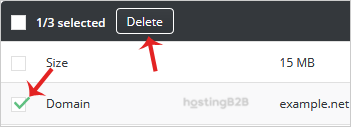
Under the Block By heading, you will see a list of all active email filters. This list may include blocked email addresses, domains, or rules based on message content. Review the list carefully and check the box next to each filter you wish to remove. - Confirm the Deletion
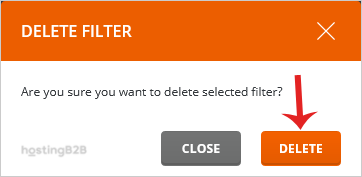
After selecting the filters, click the Delete button. A confirmation prompt will appear to prevent accidental deletion. Click Delete again to permanently remove the selected filters. Please note that this action cannot be undone.

Managing Email After Removing Filters
After you delete a filter, monitor your inbox closely for any changes in email flow. If you find that removing the filter was not the right solution, you have other options to manage DirectAdmin email settings. Instead of removing all protection, you can set up new DirectAdmin spam filters that are more specific to your needs. For more advanced spam control, you can also enable Apache SpamAssassin, a powerful tool for identifying and sorting unsolicited email. If managing email security becomes too complex, consider upgrading to a dedicated secure business email hosting solution. For any persistent issues, do not hesitate to contact our support team for expert assistance.
Frequently Asked Questions
When you remove a spam filter, emails that were previously blocked by that rule will now be delivered to your inbox. This can be useful for preventing false positives but will likely lead to an increase in unwanted spam and potential phishing emails.
The DirectAdmin interface is designed for creating and deleting filters. There is no built-in “disable” function. To temporarily stop a filter, you would need to delete it and then recreate it later when you want to use it again.
No. A better alternative is often to add the sender’s email address or domain to your “Whitelist” in the SPAM Filters section. This tells the system to always accept messages from that source without altering your other security rules.
This depends on how the filter was created. Filters set at the main account level in DirectAdmin typically apply to all email addresses associated with that domain. Be sure to verify the filter’s scope before deleting it.
If you delete a filter by accident, you must recreate it manually. The system does not store a record of deleted filters. You can follow our guide on setting up new filters to restore the rule.









