
In a few simple steps you will learn how to rename your email address in DirectAdmin.
1. Log in to your DirectAdmin Account.
2. In the E-mail Manager section, click on the E-mail Accounts Icon or type E-mail Accounts in the navigation filter box. The option will appear. Click on it.

3. Under Account, you can see your email address along with the Plus icon on the right-hand side.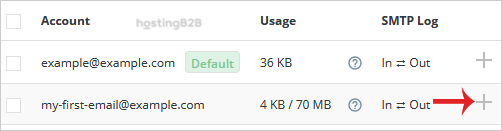
4. Click on the Plus icon and then on the Change Password/Username option.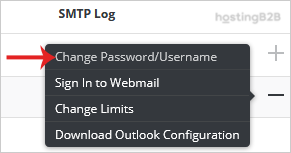
5. In the Username field, modify/rename your email username.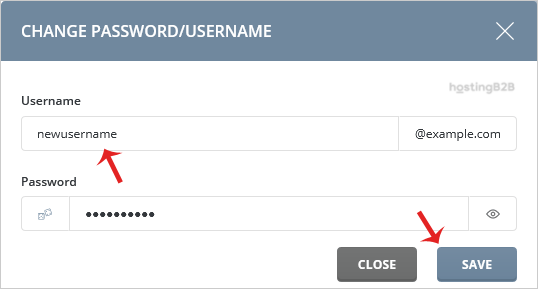
6. Click on the Save button.
Your have successfully renamed an email address in DirectAdmin.
Visit our blog for more knowledgebase articles !
The post How to rename your email address in DirectAdmin? appeared first on HostingB2B.









