
Database errors can disrupt your website’s performance and accessibility, leading to a poor user experience. Fortunately, DirectAdmin provides a straightforward tool to repair corrupted databases and restore functionality. This guide provides a complete DirectAdmin MySQL database repair guide, walking you through the process step by step to get your applications running smoothly again.
Why Databases Need Repair
Database corruption can happen for several reasons, often unexpectedly. An abrupt server shutdown, a hardware malfunction, or even a software bug can leave tables in an inconsistent state. When this occurs, you might notice slow queries, error messages on your website, or a complete inability to access your data. Running the repair tool helps fix corrupted MySQL table structures and ensures data integrity.
Important Pre-Repair Checklist
Before you attempt any repair, safeguarding your data is the highest priority. While the DirectAdmin repair process is generally safe, there is always a small risk of data loss, especially with severe corruption. We strongly recommend creating a complete backup of the database before you proceed. Having reliable and automated backups is a cornerstone of responsible server management.

How to Repair a Database in DirectAdmin
Follow these simple steps to locate the DirectAdmin database repair tool and fix your MySQL database. This process is designed to be quick and efficient, minimizing potential downtime for your website or application.
- Log in to Your DirectAdmin Account
First, access your DirectAdmin control panel using your secure credentials. - Navigate to MySQL Management
Once logged in, find the Account Manager section. From there, click the MySQL Management icon. You can also type “MySQL Management” into the navigation filter box at the top of the page to find it quickly.
- Select the Database to Repair
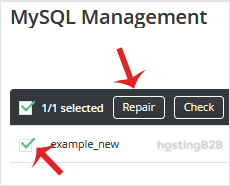
You will see a list of all your available databases. Under the “Database” heading, check the box next to the database or databases you wish to repair. You can select multiple databases to repair them all in a single operation. - Initiate the Repair Process
With your database(s) selected, click the Repair button. The system will now check all tables within the selected database and attempt to fix any detected corruption or errors.

After the Repair What to Expect
After you click Repair, DirectAdmin will process the request and display a results page. This report will show the status of each table within the database, indicating whether the repair was successful or if any issues remain. In most cases, this simple process resolves common database errors. If the repair fails, you may need to restore from a backup or investigate deeper server-side issues. For complex problems, our Managed IT Services can provide expert assistance.
Proactive Database Management
Repairing a database is often a reactive measure. To prevent future issues, it is vital to practice good database hygiene. Regularly optimize the database to improve performance and reclaim unused space. Furthermore, understanding the common security risks and solutions for your databases helps you build a more resilient infrastructure. If your application consistently experiences database issues due to high traffic, consider upgrading to dedicated server hosting for more robust performance.
Frequently Asked Questions
Repairing a database is a maintenance process that checks database tables for corruption or errors and attempts to fix them. It can resolve issues caused by unexpected server shutdowns, software bugs, or hardware failures, restoring the database to a consistent and usable state.
You should only repair a database when you suspect there is a problem, such as seeing error messages or experiencing performance degradation. It is not a routine maintenance task. Regular optimization is more beneficial for proactive care.
Yes, the DirectAdmin interface allows you to select the checkboxes for multiple databases and click the “Repair” button once to run the process on all of them simultaneously.
The repair process can briefly lock tables, which may make your website temporarily unresponsive. The duration is usually very short, from a few seconds to a few minutes, depending on the size of the database and the extent of the corruption.
Repairing fixes corrupted or damaged tables. Optimizing reorganizes table data and indexes to improve query performance and reclaim wasted space. Repairing is for fixing problems, while optimizing is for improving efficiency.
If the automated repair fails, the best course of action is to restore the database from a recent, known-good backup. If you do not have a backup, you may need advanced support to diagnose and manually fix the issue.









